
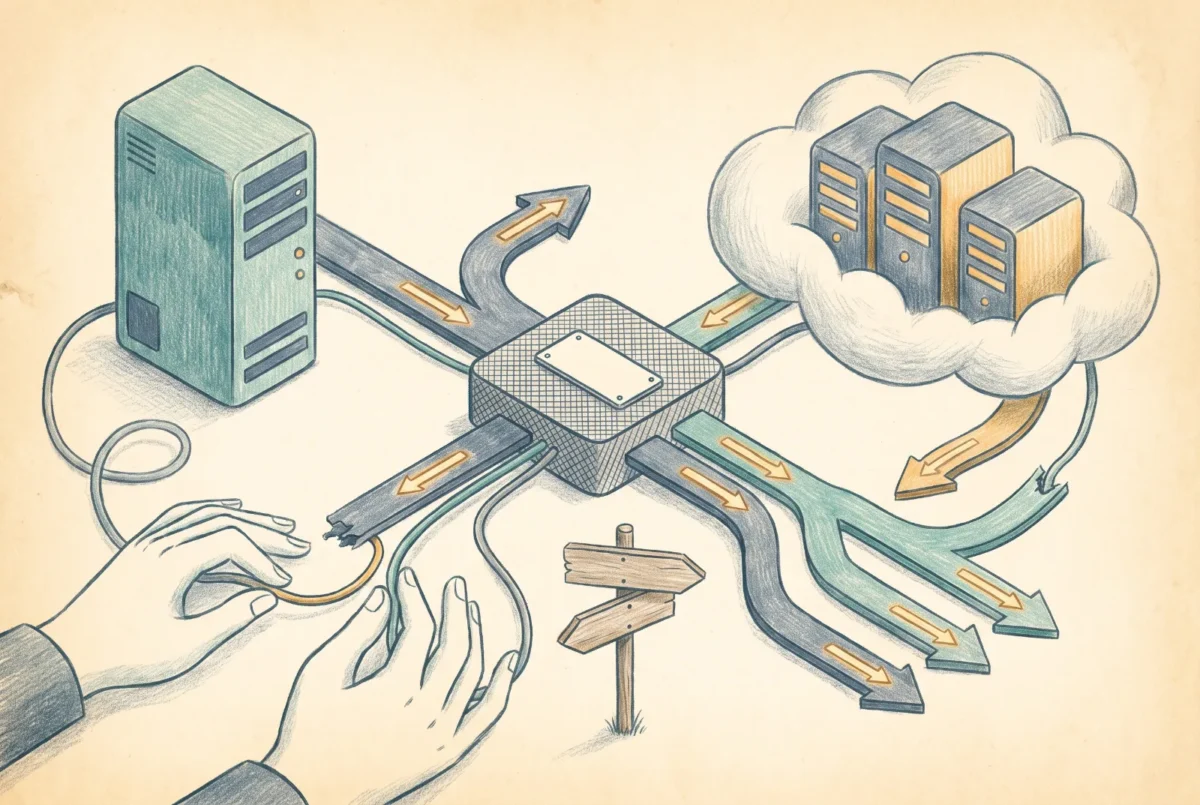

By the end of this build sheet your existing Windows Server is a tiered cache of an Azure file share: users keep their UNC path and LAN speed, cold data lives in the cloud behind stubs, a DFS namespace hides the physical server from every client, change detection is in the runbook, and you have generated and resolved a conflict file deliberately so the first one in production is not a mystery.
Prerequisites: a Windows Server 2016 or later file server (2022 or 2025 preferred) with its data on an NTFS volume, joined to your AD; an Azure file share named dept-shared on the storage account from [AF 1.1], created exactly as that sheet creates pilot and sized for the full namespace ([AF 4] sizing; the cloud share holds everything, the server holds the hot subset); outbound HTTPS 443 from the server to Azure; Owner on the resource group; and, for the DFS-N step, an existing or new domain-based namespace. The server needs local admin and you; users need nothing and should notice nothing.
Step 1: Create the Storage Sync Service and the sync group
Create a Storage Sync Service resource in the same region as the storage account, then a sync group inside it whose cloud endpoint is your share. Naming: one Storage Sync Service per region per estate (sss-westcentralus-prod, and the region belongs in this name because the resource genuinely is one per region), one sync group per share, named for the share (sg-dept-shared).
az extension add --name storagesync

az storagesync create -g rg-files-pilot -n sss-westcentralus-prod -l westcentralus
az storagesync sync-group create -g rg-files-pilot `
  --storage-sync-service sss-westcentralus-prod -n sg-dept-shared
az storagesync sync-group cloud-endpoint create -g rg-files-pilot `
  --storage-sync-service sss-westcentralus-prod --sync-group-name sg-dept-shared `
  -n cloud-dept-shared `
  --storage-account stvciofiles01 --azure-file-share-name dept-shared
Expected result: sync group with one cloud endpoint, no server endpoints yet. Failure mode: the cloud endpoint create fails on permissions if your account lacks rights to read the storage account; the service also registers itself against the storage account (a Microsoft.StorageSync service principal gets access), which is normal and required, not something to “clean up” later.
Step 2: Install the agent and register the server
On the file server, install the current Azure File Sync agent (v22 or later; agents older than the supported window refuse to sync, and the agent auto-upgrades within a major version). The installer ends in a registration wizard: sign in, pick the subscription, resource group, and sss-westcentralus-prod. Registration binds this server to that sync service, one sync service per server, ever; a server cannot serve two sync services, which is why Step 1 said one per estate per region.
Expected result: the server appears under Registered servers with a green state. If the server is Arc-enabled and under Software Assurance, registration through the Arc extension path also engages the January 2026 fee waiver; either install path lands in the same place. Failure mode: TLS inspection appliances between the server and Azure break the agent’s channel; the registration error is generic, the fix is an inspection bypass for the sync endpoints.
Step 3: Add the server endpoint with cloud tiering
The server endpoint is the path being synced. Point it at the existing data directory, and the namespace uploads to the cloud share while users keep working; nothing moves out from under them.
| Setting | Value | Why |
|---|---|---|
| Server endpoint path | D:\Shares\Dept-Shared | The live directory users already hit; File Sync adopts it in place. This build uses a dedicated folder rather than the volume root. Azure File Sync supports volume-root server endpoints, but a separate endpoint path simplifies migration boundaries, item counts, and recovery operations. Do not enable cloud tiering on the system volume. |
| Cloud tiering | Enabled | The entire point of the cache posture. Leave disabled only for a full-copy DR replica. |
| Volume free space policy | 20% | The agent keeps a fifth of the volume free by tiering the coldest files; the safe default until metrics argue otherwise. |
| Date policy | 60 days | Files untouched for two months tier proactively; match to your access patterns, not your instincts. |
| Initial sync mode | Merge with cloud content | Server data uploads; anything already in the share merges rather than being overwritten. |
Expected result: upload begins, visible in the sync group’s endpoint health, at a rate bounded by your uplink; a multi-TiB first sync takes days, and that is fine because users are still served locally throughout. Failure modes: files with unsupported characteristics are skipped and itemized per sync session in the event log (Telemetry channel, look for the per-session ItemsNotSynced counts) rather than failing the whole endpoint; and preexisting NTFS junctions or dedup-plus-tiering combinations on old server OS versions surface here, not at install.
Step 4: Put DFS-N in front
Users should mount a namespace, not a machine, from today forward. On a namespace server (any DC or member server with the DFS Namespaces role):
Install-WindowsFeature FS-DFS-Namespace -IncludeManagementTools

New-DfsnRoot -TargetPath "\\FS01\DFSRoot" -Type DomainV2 -Path "\\contoso.com\shares"
New-DfsnFolder -Path "\\contoso.com\shares\Dept-Shared" `
  -TargetPath "\\FS01\Dept-Shared"
Repoint login-script or GPO drive mappings at \\contoso.com\shares\Dept-Shared on your normal change cadence. The payoff arrives later: when this share eventually cuts over to direct cloud mounts, the cutover is one Set-DfsnFolderTarget, not a fleet-wide remapping. Expected result: a client mounts the namespace path and lands on FS01 without knowing it.
Step 5: Operational verbs for the runbook
Three commands belong in the runbook the day this ships. Cloud-side changes propagate to servers on a detection cycle up to 24 hours; after any restore or direct-to-share change that a branch needs now, trigger detection manually. Recall and tiering are also first-class verbs, for pre-warming a directory before a workshop or forcing space free:
# Force cloud change detection (after restores/direct cloud edits)
Invoke-AzStorageSyncChangeDetection -ResourceGroupName rg-files-pilot `
  -StorageSyncServiceName sss-westcentralus-prod -SyncGroupName sg-dept-shared `
  -CloudEndpointName cloud-dept-shared -Path "\Projects\Q3" -Recursive

# Pre-warm (recall) a directory to the server
Invoke-StorageSyncFileRecall -Path "D:\Shares\Dept-Shared\Projects\Q3"

# Verify tiering state of a file (attribute O = tiered stub)
fsutil file queryEA "D:\Shares\Dept-Shared\Projects\Q3\plan.xlsx"
And the standing prohibitions from the doctrine article, now enforceable: the on-prem backup product is repointed away from D:\Shares (the cloud share carries backup from here, next articles), AV on the server is confirmed to honor the recall attribute, and nobody ever restores this server from an image backup, because a server endpoint restored from an image desyncs in ways that end in support tickets; a dead cache server is replaced with a fresh one and a new server endpoint, not resurrected.
Step 6: The end-to-end test, including the conflict you cause on purpose
Functional pass: create a file on the server path, confirm it appears in the cloud share (portal file browser) within minutes; upload a file in the portal, run the change-detection cmdlet scoped to its folder, confirm it appears on the server. Tiering pass: fill the volume past the free-space policy with disposable data, watch the coldest files become stubs (offline attribute in Explorer, size-on-disk near zero), open one and confirm transparent recall.
Then the drill that pays for itself: on the server, open a test document and change it; before sync completes (or with the server’s network briefly disconnected), edit the same document in the cloud share via the portal; reconnect and let sync run. Expected result: both versions survive, the losing edit renamed with the server name embedded in the filename. Show that artifact to whoever will staff the help desk, file it in the KB with the resolution (compare, merge by hand, delete the loser), and you have converted this platform’s most confusing behavior into a documented, already-seen event. That is the build: cache running, namespace in front, verbs in the runbook, surprises pre-spent.
Azure Files
‹ Previous: [AF 5] Azure File Sync: The Cache That Keeps Your Servers
Next: [AF 6] Migrating the File Server: ACLs, SIDs, and Sequencing ›



