
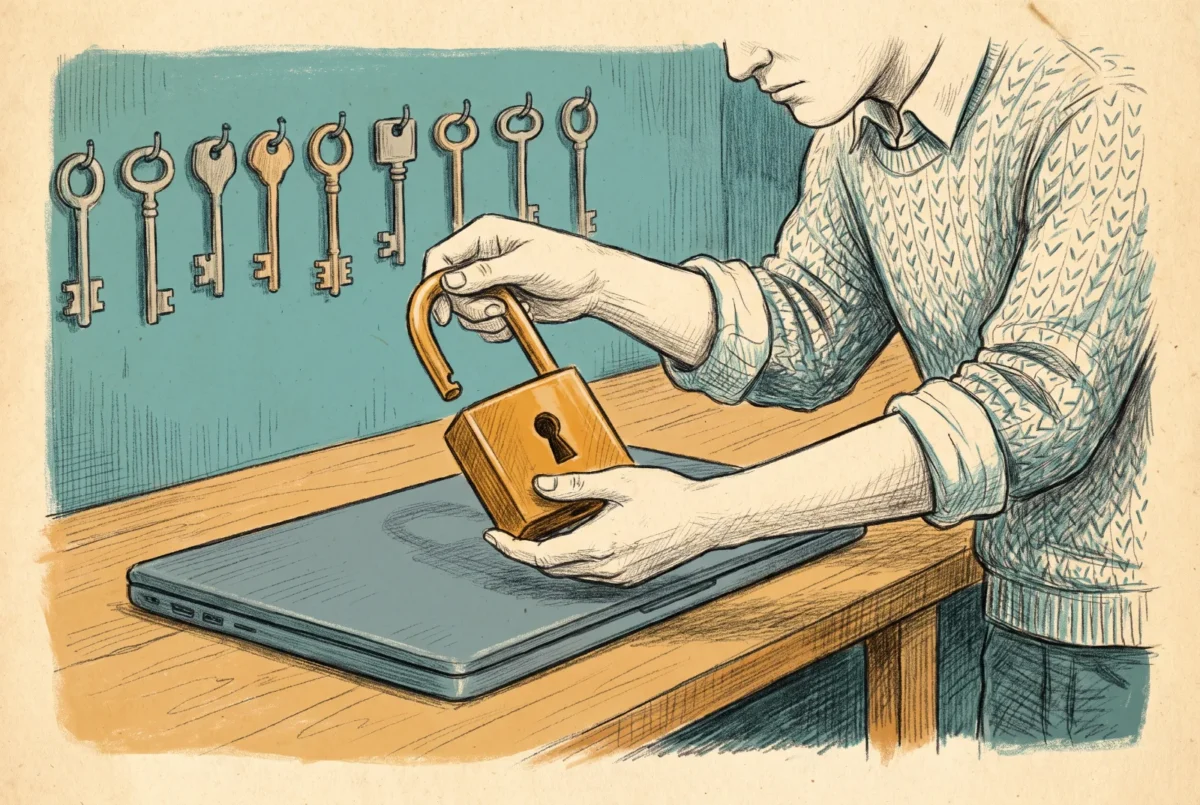

There is no decrypt button in Intune. Removing the BitLocker policy does not decrypt anything, unassigning it does not decrypt anything, and there is no remote action that decrypts anything. That surprises people because turning encryption on is a policy, so turning it off feels like it should be one too. It is not, and the workflow that actually works has an order of operations that matters more than the script.
What removing the policy actually does
Nothing, on disk. The BitLocker CSP is explicit that disabling the encryption requirement stops prompting for encryption but does not turn it off, and the deeper truth is that encryption is not a setting at all. It is a completed disk operation. Policy told the device to perform it once; withdrawing the policy withdraws the instruction, not the result. The volume stays encrypted, the protectors stay in place, and the recovery key stays escrowed in Entra. If you want the ciphertext gone, something on the device has to actively decrypt the volume.
The order of operations
Exclude the device from the encryption policy before you decrypt, not after. A device that decrypts while still in scope of a policy requiring encryption will simply re-encrypt at a subsequent check-in, and the maintenance sync runs roughly every eight hours, so your careful decryption has a shelf life of about a workday. Move the device out of the assignment first, confirm the policy no longer applies, then decrypt.
Expect the compliance fallout and decide about it in advance. A compliance policy that requires encryption never encrypts anything itself, but it will mark the decrypted device noncompliant, and whatever Conditional Access hangs off compliance follows from there. One nuance worth knowing: the Require BitLocker compliance setting is measured by device health attestation at boot, so the compliance state will not move, in either direction, until the device restarts.
The script
The decryption itself is two cmdlets, with one trap: Disable-BitLocker refuses to touch the operating system volume while automatic unlock keys exist for data volumes, so those are cleared first. Run it as SYSTEM in the 64-bit host, because the BitLocker module is not reliably available to a 32-bit session.
Clear-BitLockerAutoUnlock -ErrorAction SilentlyContinue
Get-BitLockerVolume | Where-Object VolumeStatus -ne 'FullyDecrypted' |
    ForEach-Object { Disable-BitLocker -MountPoint $_.MountPoint }
Do not make the deployment vehicle wait for the result. Decryption is a background operation that scales with how much data was encrypted, and a platform script that sits in a loop polling for completion will hit Intune’s 30-minute script timeout on any real disk while the decryption itself carries on regardless. Fire the command and verify separately: a remediation detection that checks Get-BitLockerVolume for a VolumeStatus of FullyDecrypted gives you fleet-wide confirmation without anything timing out.
When you should suspend instead
Half the requests I see for decryption are actually requests for suspension. A firmware update, a TPM change, a motherboard swap: those need BitLocker out of the way for a reboot or two, not removed. Suspend-BitLocker with a reboot count leaves the data encrypted but makes the key available in the clear until protection resumes, which is precisely the tool for maintenance windows. Decryption is for the permanent cases: migrating to a different cipher strength, handing hardware out of management, repurposing a machine. And one behavior that catches people completely off guard sits in between: deleting the Intune device object for an Entra-joined device triggers a sync that removes the OS volume’s key protectors and leaves BitLocker suspended. The disk still says encrypted; the protection is off. Do not tidy up device objects while their hardware still holds data you care about.
The 24H2 wrinkle that makes this common
Windows 11 24H2 loosened the hardware requirements for automatic device encryption to little more than a TPM and Secure Boot, so far more devices now arrive at their first Intune check-in already encrypted: XTS-AES 128, used space only, initialized during OOBE with a clear key that arms at first sign-in. If your policy wants XTS-AES 256 or full-disk encryption, an already-encrypted device cannot simply change algorithm. It has to decrypt first, which is exactly the workflow on this page, and it is the single most common reason fleets end up needing it. The better move is to win the race instead: deliver the encryption settings during provisioning, before automatic encryption completes its work, so the algorithm is right the first time. That design decision, and the rest of the encryption policy, is [5.3.1] BitLocker: Designing Encryption Policy That Works.
The keys outlive the ciphertext
Decryption removes the protectors from the volume, but the recovery keys already escrowed to Entra stay on the device object. Graph exposes them read-only; there is no supported call to delete an individual key, and the only way they leave is when the device object itself is deleted. That is usually fine, a stale key for a decrypted volume unlocks nothing, but it matters for audit answers: the report that lists escrowed keys is not a report of what is currently encrypted. If the device is being repurposed inside the estate, decrypt, re-encrypt under the new policy, and let rotation do its job. If it is leaving the estate, the device object deletion that offboards it takes the keys with it.



