
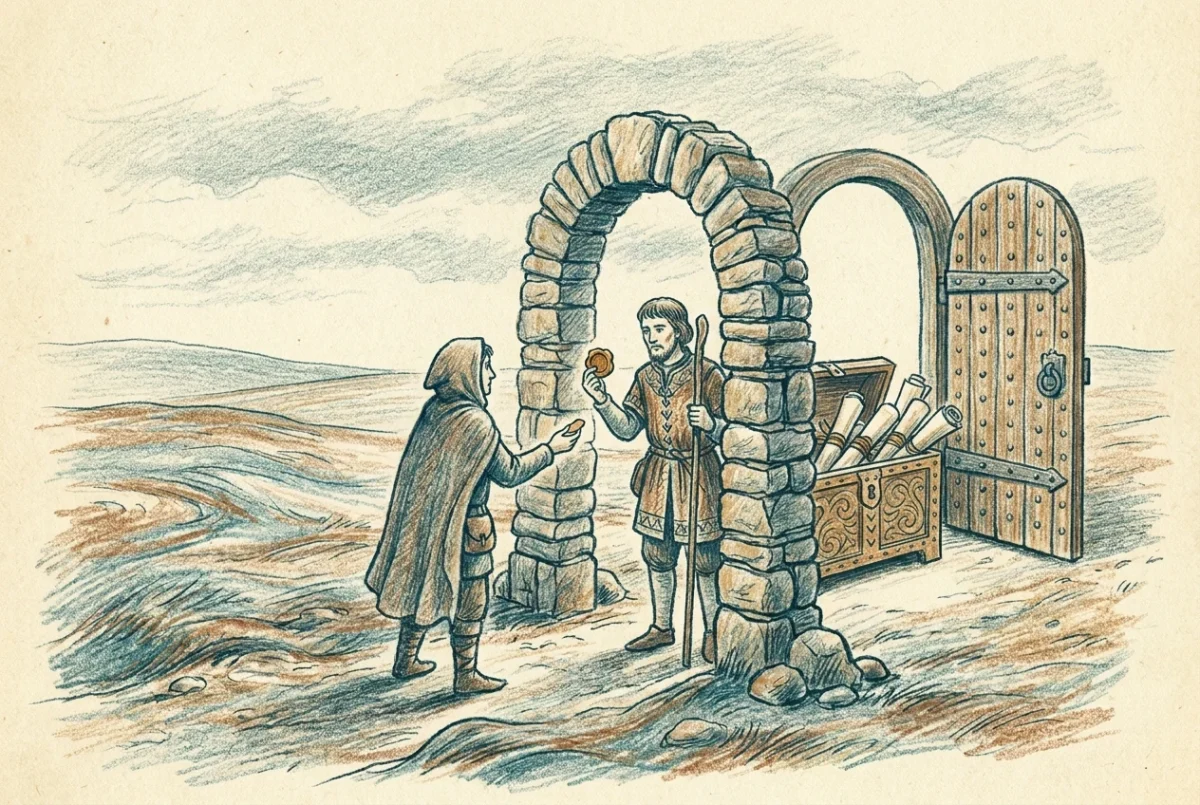

By the end of this a laptop with no VPN and no line of sight to your network maps a drive to an on-premises file server and opens a remote desktop session to a jump host, signs in with Kerberos rather than a credential prompt, and is challenged for multifactor authentication by Conditional Access at the application boundary rather than at the network edge.
Before step 1 you need the foundation from [GSA 4.1] complete and proven: two registered connectors in a group that is not Default, the Private Access forwarding profile enabled and scoped, Quick Access carrying the site, and private DNS answering for the forest suffix. Kerberos single sign-on has a hard dependency on private DNS and there is no path around it. You also need users synchronised from Active Directory to Microsoft Entra ID, because every ticket in this build is issued against a synchronised identity.
What is actually being asked
File shares and remote desktop are the two workloads that keep VPN concentrators alive in estates that have otherwise moved. They are also the two that expose whether a zero trust network access product is real, because both authenticate with Kerberos and Kerberos does not care how enthusiastic your architecture diagram is. If the client cannot locate a domain controller, request a ticket granting ticket, and obtain a service ticket with the correct service principal name, the user gets a credential prompt and your migration gets a reputation.
So this build sheet does three things in order. It publishes the domain controllers, because nothing else works until ticketing works. It publishes the file server and the jump host as their own applications with their own assignment and policy. And it names, without softening, the parts of the old VPN experience that do not come across.
Step 1. Decide on names, not addresses, and decide it now
Microsoft’s own worked example for a file share publishes the IP address of the file server on 445/TCP. Two other Microsoft pages publish an FQDN for the same scenario, and the flow diagram on the very page that used an IP describes the user reaching the share by name. Publish the fully qualified name.
The reason is on a third page again, in the private DNS documentation, and it is the constraint that governs this entire article. Private DNS resolves single-label names by appending a synthetic suffix. A client that asks for the short name FS01 therefore ends up constructing a service principal name against a synthetic domain that exists nowhere in your directory, no matching SPN is found, and the Kerberos flow either fails or silently degrades to NTLM. Microsoft states it in one line: use FQDN for applications that require Kerberos authentication.
Practically that means the drive mapping, the shortcut, the logon script and the documentation all say fs01.catsnackjack.com and never FS01. Publish both the name and the address it resolves to as segments, for the reason set out in the foundation build, but let the humans and the applications use the name.
Step 2. Publish the domain controllers
Here the documentation splits three ways and you should know that before you choose, because two of the three will be quoted at you by somebody who read a different page.
The Kerberos single sign-on page carries the broad table: 88, 123, 135, 389, 445, 464 as UDP and TCP together, 636, 3268 and 3269 as TCP, and the entire ephemeral range 49152-65535 as UDP and TCP. The application discovery page carries a tighter design expressed as two segments, one TCP and one UDP, and replaces the wholesale ephemeral range with a single fixed port for Netlogon. The domain controller protection page publishes exactly one port, 88/TCP, because it is written for the Private Access Sensor scenario rather than for single sign-on.
Build the tighter one. Publishing sixteen thousand ephemeral ports as both protocols to a domain controller is not a segmentation strategy, it is a VPN with extra steps, and it is exactly the shape this product exists to retire. Pin Netlogon to a static port in Active Directory first, then publish that port and nothing else above 3269.
| Setting | Value | Why |
|---|---|---|
| Application name | CSJ-PA-DomainControllers | Its own application, so it carries its own policy |
| Segment 1 destination | dc01.catsnackjack.com, dc02.catsnackjack.com | Named individually. Wildcards are explicitly advised against for DCs |
| Segment 1 ports, TCP | 88, 135, 389, 445, 464, 636, 3268, 3269, plus the fixed Netlogon port | Kerberos, endpoint mapper, LDAP, SMB for SYSVOL, password change, LDAPS, global catalog |
| Segment 2 ports, UDP | 88, 123, 389, 464 | Kerberos, time, DC locator, password change |
| Also publish | The DC IP addresses | Same cached-address gap as any other segment |
| Scope | Every DC in the site where the connectors live | Microsoft’s stated minimum. A partial set produces intermittent failures |
Two notes on that table. UDP 389 is not decoration; the DC locator exchange runs over it, and if you publish only TCP the client will select and cache a domain controller badly or not at all. And the application discovery page lists 137 and 138 as TCP, which is wrong on its face because both are UDP NetBIOS services. Treat it as a typographical error rather than as guidance, and note separately that NetBIOS is unsupported by Private Access anyway.
Assign this application to everyone who needs single sign-on to anything, because ticketing underpins every other private application you publish. Then apply Conditional Access to it with care. A domain controller application that demands an interactive challenge at inconvenient moments will produce authentication storms rather than security.
Step 3. Kerberos single sign-on, and which of your users already have it
There are two populations and they need different work.
Users who sign in to Windows with a password on a Microsoft Entra joined device need nothing beyond what you have already built. Microsoft states it plainly: no extra configuration is required. The user principal name and password are used to request a ticket granting ticket directly from a domain controller reached over the tunnel, using the domain information already synchronised by Entra Connect.
Users who sign in with Windows Hello for Business have no password to present, so they need a different path: the device obtains a partial ticket granting ticket from Microsoft Entra ID and exchanges it at a domain controller for a full one. That is cloud Kerberos trust, and it needs the Microsoft Entra Kerberos server object created in Active Directory and the client policy enabled. Microsoft calls cloud Kerberos trust recommended rather than required, because key trust and certificate trust are alternatives, but it is the only path the Private Access documentation covers and it is the one to build. The mechanics are in [2.5.2] and they do not change for this scenario.
Three constraints on that path are worth stating before somebody discovers them at three in the afternoon on a cutover day. Password sign-in is not supported for cloud Kerberos trust, which is a different statement from the one above and catches people who read too fast: password users get single sign-on through the ordinary path, not through cloud trust. Accounts that are direct or indirect members of privileged built-in security groups cannot use cloud Kerberos trust at all, by design, and Microsoft advises against relaxing the password replication policy to change that. And on a Microsoft Entra hybrid joined device, the first Windows Hello sign-in requires line of sight to a domain controller. A machine that has never been on the corporate network cannot bootstrap this over the tunnel. That is a provisioning constraint, not a networking one, and it decides whether your build works for new starters or only for existing fleet. The three device identity states and what each is actually capable of are set out in [3.2.3], and the distinction earns its keep here more than anywhere else in this series.
A device that has never touched the corporate network can use Kerberos single sign-on over Private Access. It cannot always be enrolled into the conditions that make Kerberos single sign-on possible. Those are different problems and only one of them is solved here.
Step 4. Defuse the Kerberos negative cache
This is the defect that makes people abandon the build, and it presents as intermittency rather than failure, which is worse.
The sequence is this. The client boots or resumes. Something asks for a Kerberos ticket before the Global Secure Access tunnel is fully established. Domain controller location fails. Windows caches that failure. The tunnel then comes up perfectly, and the client continues to believe there is no reachable domain controller for the length of the cache timer, because nothing invalidates a negative cache entry early. The user gets credential prompts on a working connection, and by the time you look at it the problem has cleared itself.
The timer is FarKdcTimeout, and Microsoft’s own documentation contradicts itself about its default on a single page. The table in the Global Secure Access remedy says the default value is 0 minutes. The prose three paragraphs above it, on the same page, says the default is 10 minutes and explains the ten minute symptom in detail. The long-standing Kerberos registry reference article says 10. The table is a documentation bug in which somebody pasted the target value into the default field.
| Setting | Value | Why |
|---|---|---|
| Key | HKLM\SYSTEM\CurrentControlSet\Control\Lsa\Kerberos\Parameters | Create the Parameters key if it does not exist. It usually does not |
| Value name | FarKdcTimeout | Invalidation timer for a DC in a different site |
| Type | REG_DWORD | |
| Documented default | 10 (minutes) | The source of the ten minute symptom |
| Target value | 0 | The value Microsoft’s own install script sets, to avoid negative caching |
$kerbParams = "HKLM:\SYSTEM\CurrentControlSet\Control\Lsa\Kerberos\Parameters"

if (-not (Test-Path $kerbParams)) {
    New-Item -Path $kerbParams -Force
}

New-ItemProperty -Path $kerbParams -Name "FarKdcTimeout" -PropertyType DWord -Value 0 -Force
Be honest with yourself about the provenance of that zero. It comes from Microsoft’s PowerShell client install script, and that page is explicitly labelled as a proof of concept. It is Microsoft’s stated value for this scenario, which is a good reason to use it, and it is not production guidance, which is a good reason to say so in your change record. The Kerberos registry reference also carries a standing instruction to remove troubleshooting registry entries when you are finished with them, on performance grounds. In an estate where Private Access is the permanent access path, this entry is not troubleshooting and it stays. Write down that you decided that.
The alternative Microsoft offers is manual cache purging, and it is worth knowing precisely what it does because the documentation’s own heading blurs it.
klist purge_bindThat command removes cached preferred domain controllers. It does not touch tickets; the command that destroys tickets is klist purge, and they solve different problems. Microsoft’s guidance is that the purge has to be run every time the Global Secure Access client restarts, which makes it a diagnostic tool rather than a deployment strategy. Set the registry value on the fleet and keep the purge for the bench.
Step 5. Publish the file server
| Setting | Value | Why |
|---|---|---|
| Application name | CSJ-PA-FileServices | Its own application, its own assignment group, its own policy |
| Segment 1 destination | fs01.catsnackjack.com (FQDN) | The name, so the SPN matches |
| Segment 2 destination | 10.20.10.20 (IP address) | The resolved address, so cached-address traffic cannot fall back to Quick Access |
| Ports | 445 | SMB |
| Protocol | TCP | SMB over TCP is the transport in use |
| Quick Access change | Carve 10.20.10.20 out of the broad range | So this application is the only match for that address |
| Assignment | SG-GSA-PA-FileServices | Direct members only. Nested groups are not evaluated |
You will read that Windows 11 attempts SMB over QUIC on 443/UDP before falling back to 445/TCP, and that this breaks Private Access. It does not, for an ordinary file server. SMB over QUIC is opt-in on the server side and cannot be forced by a client, so a server that has not enabled it never answers on QUIC and the client proceeds to TCP. Worth knowing that QUIC is supported for Private Access, unlike Internet Access, so if you genuinely have SMB over QUIC enabled you have a design to think about rather than a wall.
One boundary worth naming here, because the question arrives within a minute of anyone reading the heading. This publishes an on-premises Windows file server. If the share you actually want to reach is an Azure Files share, the shape is different enough that it is a separate build: a private endpoint rather than a connector, a storage account rather than a member server, and a Kerberos story that runs through Microsoft Entra Domain Services or on-premises AD depending on which identity source you chose. That work is [AF 3.2] and this article deliberately does not rebuild it. The two are complementary rather than alternatives, and estates running both will publish the on-premises server here and reach the Azure share through the path described there.
Once the share is reachable, verify the mapping by name and not by address, because a mapping by address will work and will teach you nothing.
New-SmbMapping -LocalPath "S:" -RemotePath "\\fs01.catsnackjack.com\shared"
Get-SmbConnection | Format-Table ServerName, ShareName, Dialect, Credential
The Credential column is the assertion that matters. A Kerberos session shows the domain account. A session that fell back to NTLM, or that prompted, has told you the ticketing path is not working even though the file copy succeeded.
Step 6. Session persistence, where the command line leads honestly
Everything else in this series pairs a portal walk-through with a command line equivalent. This one does not, and I would rather say so than fabricate a symmetry. There is no portal control for the traffic routing method on a Global Secure Access application. It exists only as a property on the application registration object in the beta Graph endpoint.
The default is random: each request may land on any healthy connector in the group. The alternative is sessionPersistence, which routes every request from a given user and device to the same connector for the duration of a session. Microsoft documents it for applications that depend on the connector egress address for authentication or access control lists, and separately documents a failure mode where a session established through one connector breaks when subsequent traffic arrives at another.
Connect-MgGraph -Scopes "Application.ReadWrite.All"

$appObjectId = "REPLACE-WITH-APPLICATION-OBJECT-ID"

Invoke-MgGraphRequest -Method PATCH -Uri "https://graph.microsoft.com/beta/applications/$appObjectId" -Body @{
    onPremisesPublishing = @{
        trafficRoutingMethod = "sessionPersistence"
    }
}
Note carefully what is and is not established here. Microsoft documents session persistence, documents the multi-connector session breakage it addresses, and documents that the setting applies to Global Secure Access applications and not to Application Proxy applications. Microsoft does not anywhere state that SMB requires it. I have no measurement of my own that says it does. So treat this as a lever you know exists and know how to pull, to be applied if you observe sessions breaking mid-transfer in a multi-connector group, rather than as a step you take because a build sheet told you to. Revert it by setting the value back to random.
Step 7. Publish remote desktop, both protocols
| Setting | Value | Why |
|---|---|---|
| Application name | CSJ-PA-RemoteDesktop | Separate from file services because the audience is smaller |
| Segment 1 destination | jump01.catsnackjack.com (FQDN) | The name, for the SPN |
| Segment 2 destination | 10.20.10.30 (IP address) | The resolved address |
| Ports | 3389 | RDP |
| Protocol | TCP and UDP | The client uses both. Publishing only TCP produces a working but degraded session |
| Assignment | SG-GSA-PA-RemoteDesktop | Administrative access deserves its own boundary |
The dual protocol requirement is the most instructive failure in the whole product, because the symptom is not a failure. Microsoft’s own troubleshooting walkthrough describes exactly this: the connection establishes and tunnels over 3389/TCP, the user reports that performance is poor, and when you remove the default filter on the traffic view you find the remote desktop client also sending to 3389/UDP and that traffic bypassing to the local network because no rule matches it. Nothing errors. The session simply feels wrong, and it feels wrong in a way that is easy to blame on the tunnel in general rather than on a missing protocol checkbox.
One more setting belongs with remote desktop, and it comes from the same Microsoft install script as the Kerberos value. If Conditional Access on this application challenges the user for multifactor authentication during connection, the remote desktop client can time out before the challenge is answered.
New-ItemProperty -Path "HKLM:\Software\Microsoft\Terminal Server Client" -Name "TimeoutTcpDirectConnection" -PropertyType DWord -Value 60 -ForceSixty seconds is the value Microsoft’s script sets, described as allowing time to complete multifactor authentication during a connection attempt. It is the difference between a policy that works and a policy your administrators route around.
The end-to-end test, written so a failure localises
A single pass or fail on “can I open the share” is useless here, because there are four independent things that must all be true and they fail in ways that look identical from the file explorer. Run the test as four staged observables and stop at the first one that does not hold. Take the pilot device off any network that can reach the estate directly, because a laptop on the office wireless will pass this test without the product being involved at all.
Observable one: the traffic is being acquired. In Advanced Diagnostics, on the Traffic tab, start collecting and then reach the share. You want rows with Action set to Tunnel and Channel set to Private Access, on 445/TCP to the file server and on 88/TCP to a domain controller. Note the second one: the Kerberos traffic is initiated by lsass rather than by explorer, so it appears as a separate process, and if it is absent the client is authenticating some other way. Remove the Action filter and confirm nothing from the same processes is bypassing.
Observable two: the identity layer saw it and applied policy. In the Entra sign-in logs, filter to the application. There should be an interactive or non-interactive sign-in against CSJ-PA-FileServices showing the Conditional Access policy applied and the multifactor authentication result. This is the assertion that the access was governed rather than merely delivered. If observable one holds and observable two is empty, traffic is flowing and policy is not being evaluated, which is a materially different problem from a broken tunnel.
Observable three: the ticket is real. On the client, confirm the service ticket exists and names the right service principal.
klist
klist get cifs/fs01.catsnackjack.com
nltest /dsgetdc:catsnackjack /keylist /kdc
A ticket for cifs/fs01.catsnackjack.com is the proof that single sign-on happened rather than a cached credential being replayed. The nltest call confirms that the domain controller the locator selected participates in cloud Kerberos trust operations, indicated by the KEYLIST flag; if it does not, Windows Hello users will fail while password users succeed, which is the confusing intermittency people report as random.
Observable four, for Windows Hello users only: the cloud trust path is live.
klist cloud_debug
dsregcmd /status
In the first, the field to read is Cloud Primary (Hybrid logon) TGT available, and the value you want is 1. In the second, look for OnPremTgt set to YES, which indicates the user holds a partial ticket granting ticket for on-premises single sign-on. That field was named CloudTGT before Windows 11 version 23H2, so an older runbook will send you looking for the wrong string. I am labelling this observable as documented rather than observed: the field names and expected values come from Microsoft’s documentation and not from a measurement I took in this estate, and it sits behind the lab queue with the other two open items in this series.
Then prove the negative, as always. Remove the test user from SG-GSA-PA-FileServices, wait fifteen minutes, and try the mapping again. It should fail, and it should fail while remote desktop to the jump host continues to work, because that is a different application with a different assignment. Two workloads on the same host, on the same tunnel, with different answers. That is the thing the VPN could not do, and it is the only demonstration that makes the argument for you.
What this does not replace
Microsoft’s Kerberos single sign-on guidance carries a scope exclusion directly beneath its port table, and it is the most important sentence on the page. The guidance covers single sign-on to published resources and excludes the configuration required for domain-joined clients to perform domain operations, naming password change and Group Policy specifically.
Read that as what it is. No Microsoft page states that Group Policy processing, logon scripts or startup-time drive mapping work over Private Access for a machine that never reaches the corporate network. The ports that would carry them are in the published table, so the transport is there, and the scenario is disclaimed anyway. The structural reason is not obscure: the Global Secure Access client is a user-context tunnel that comes up after sign-in. There is no device tunnel at boot. Anything your estate does in machine context before a user authenticates, which includes computer policy at startup and the classic mapped-drive logon script, does not have a network to do it over.
That is the honest boundary and it is where Always On VPN still wins. A device tunnel that establishes before sign-in, machine-context Group Policy for a fleet that never comes to the office, and credential provider integration for a first sign-in with no cached credentials are all things Always On VPN does and this does not. If your estate depends on those, Private Access replaces most of your VPN and not all of it, and a design that pretends otherwise will be found out by the first new starter who is posted a laptop.
The right answer in most mid-market estates is to stop depending on them. Move drive mapping to a policy that applies in user context after the tunnel is up, move computer policy to device configuration in Intune, and accept that the corporate LAN is a provisioning venue rather than an operating requirement. That is a larger piece of work than this build sheet and it is the actual project. Publishing the file server was the easy part.
A note on the domain controller sensor
Everything above governs access from outside. The Private Access Sensor, generally available since January 2026, governs Kerberos on the domain controller itself, which brings multifactor authentication to on-premises resources accessed from on-premises. It installs on the domain controller, listens on inbound TCP 1337, and gates ticket issuance by service principal name and source address. Its default posture is instructive: for any SPN you place under its policy without an exclusion, it blocks all direct access except from devices running the Global Secure Access client.
Two things to know before you touch it. It installs in audit mode and stays there until you deliberately move it to enforce, which is the correct default and also the reason people believe it is not working. And you can enforce multifactor authentication on the domain controller’s own service principal name, which is a genuinely good idea and an excellent way to lock every administrator out of the estate simultaneously if you do it before you have tested the exclusion lists. It gets its own treatment later in this series rather than a paragraph here.
What you have now is the case that justifies the project: two on-premises workloads reachable from anywhere, authenticated by Kerberos, governed per application by Conditional Access, on a device with no VPN client installed. The next article in the series turns to what you can see once this is running, which is a different and less comfortable conversation.
Global Secure Access
‹ Previous: [GSA 4.1] Build Sheet: The Private Access Foundation



