
If your team still unboxes every new laptop, signs in, and works through a checklist of installs before shipping it to the user, this article is for you. Not because the process is wrong, but because it has been optional for years now, and the alternative is better in ways that are hard to see from the bench.
The bench build
I still walk into environments where new laptop day looks the way it did in 2015. A technician opens the box, powers the machine on, clicks through Windows setup with a local account, joins the Wi-Fi, and starts down the list. Install the antivirus agent. Install the VPN client. Install Office, sign into OneDrive, map the drives, run Windows Update twice, check the checklist, repackage the laptop, and hand it to shipping. On a good day that is two hours of skilled time per device. On a bad day the technician gets interrupted at step nine, and the user discovers three weeks later that the VPN client never got configured.
The process works, which is exactly what keeps it alive. Nobody budgets a project to replace something that works. But it has two costs that compound quietly. The first is the engineering time, which is pure repetition: the same clicks, the same installers, the same checklist, hundreds of times a year. The second is variance. A checklist executed by humans produces a slightly different laptop every time, and those small differences become the helpdesk tickets of the next three years. And if the employee is remote, the laptop ships twice: once from the distributor to your office so a technician can touch it, then again from your office to the person who actually needs it.
The other picture
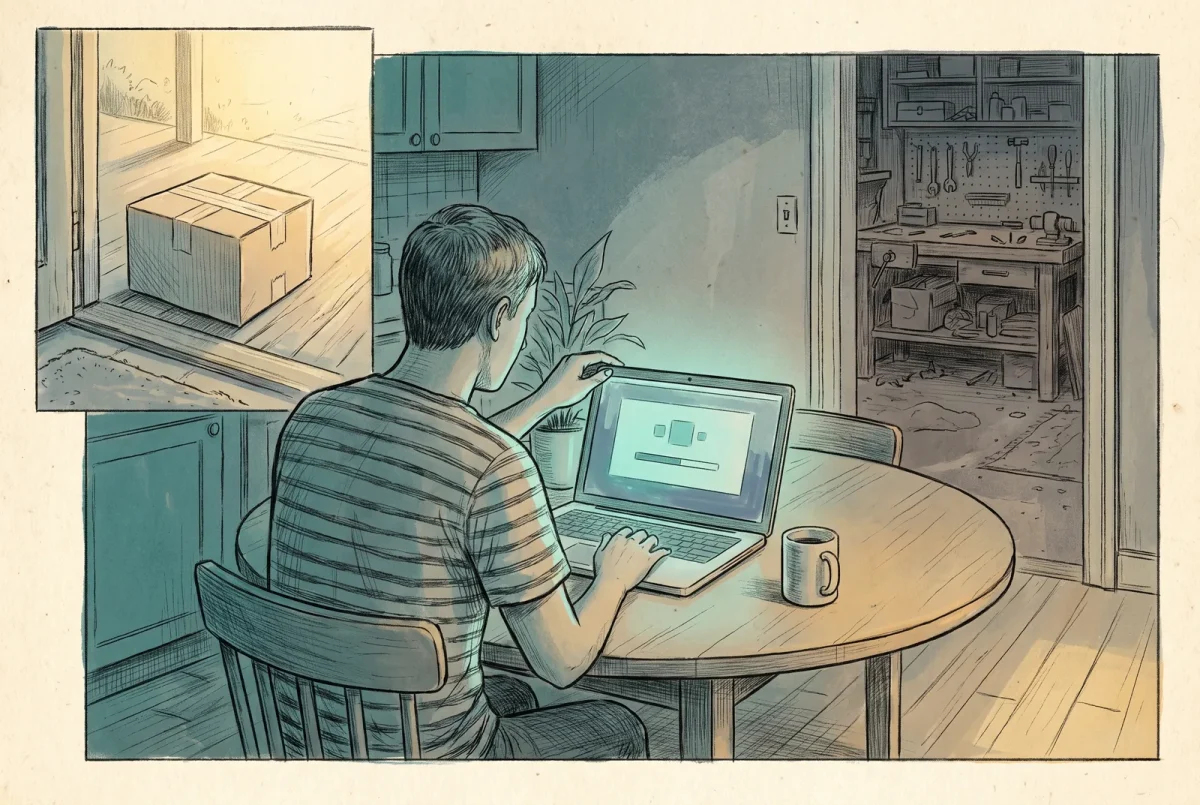
Here is what the same Monday looks like in the environments I build now. A new hire starts. The laptop was drop-shipped from the distributor to her house, still sealed. She opens the box, connects to her home Wi-Fi, and instead of Windows asking her to create an account, the machine greets her with her employer’s sign-in page. She enters her work address and the Temporary Access Pass her manager sent her, sets up Windows Hello, and watches a progress screen for a while. The device joins the company directory, enrolls into management, encrypts its disk, receives the security stack, and installs the applications her role requires. When the desktop appears, Teams and Outlook sign her in the first time she opens them, no password required, and her Desktop and Documents folders are already syncing to the cloud. Nobody in IT touched the laptop. Nobody in IT knew her laptop had arrived until the enrollment showed up in the console.
Nobody in IT touched the laptop, and that is not a corner cut. Every control the bench build applied by hand arrived anyway, in the same order, the same way it did on the last two hundred devices.
Four products cooperate to make that happen, and it is worth being precise about who does what, because the marketing names blur together. Microsoft Entra ID owns identity: it is the directory the device joins and the authority that decides whether that sign-in on a brand-new machine is legitimate. Microsoft Intune owns configuration: every policy, security setting, certificate, and application the device receives comes from Intune, delivered over the internet with no VPN and no line of sight to a server. Windows Autopilot is the front door: it is the mechanism that makes a factory-fresh laptop recognize its owner during first boot and hand itself over to Intune. And Microsoft 365 owns the data layer, with OneDrive quietly relocating the user’s working files off the machine so the machine stops being the only place they exist.
What Autopilot actually is
The most common misconception I hear is that Autopilot images the machine. It does not install Windows at all. The laptop arrives with the manufacturer’s Windows installation, the same one it would have if you bought it retail. What Autopilot changes is the out-of-box experience. Because the device was registered to your organization before it shipped, commonly by the vendor you bought it from, Windows phones home during first boot, learns who it belongs to, and replaces the consumer setup flow with your company’s sign-in. Everything after that is Intune building your standard configuration on top of a known-good operating system. I describe it to clients as policy-driven provisioning: the operating system is a starting point, and the company machine is assembled on top of it, from the cloud, every time, the same way.
That definition matters because it reframes what deployment is. The bench build treats each laptop as a project. Autopilot treats your standard configuration as the product, and each laptop as one more instance of it. When something is wrong, you fix the configuration once and every future device inherits the fix. The technician who used to spend Tuesday installing VPN clients now spends Tuesday improving the thing that installs VPN clients.
One note for anyone who goes reading the documentation next: Microsoft currently ships two provisioning variants under the Autopilot name, classic Windows Autopilot and the newer Windows Autopilot device preparation. They differ in registration mechanics and in what they can do, and I cover that decision in the deployment series. For this article it is enough to know that the picture I am painting is fully supported today, and my default remains classic Autopilot.
What has to be true behind the front door
Autopilot is a front door, and a front door is only as good as the house behind it. The two-hour bench build did not disappear; it moved. It became engineering work you do once, in the tenant, instead of manual work you repeat on every device. Being honest about that up front is what separates a deployment that delights people from one that strands a new hire at a spinning progress screen.
Identity has to be ready for a user who has never signed in before. A brand-new employee has no password history and no Authenticator app yet, which is why a Temporary Access Pass matters: it is the controlled, expiring credential that lets day one begin without a helpdesk call. Your Conditional Access policies also have to permit the enrollment they are protecting, because a policy that demands a compliant device from every sign-in will happily block the process that creates compliant devices. I wrote about that bootstrap problem, and how to protect it without weakening it, in the day-one article.
Applications have to install without a human clicking Next. Every app assigned during provisioning needs silent installation, a reliable detection rule, and known behavior on restart, which is a packaging discipline more than a technical hurdle. The discipline pays for itself the first time an installer that “usually works” fails on device forty of a two-hundred-device rollout. My rule with clients is that the list of apps allowed to block the desktop stays short: the security agent, the VPN, Microsoft 365, and whatever line-of-business application defines the person’s job. Everything else installs after the user is already working. The mechanics of both live in the Win32 deployment guide and the Enrollment Status Page article.
And the standard configuration itself has to exist: encryption policy, the Defender stack, update rings, browser and OneDrive settings, Wi-Fi and VPN profiles. If you are running Intune today, most of this is your existing estate; Autopilot does not ask for new policy, it asks that the policy you have is coherent, because provisioning will surface every conflict two policies have been quietly having for months.
The everyday part
Provisioning is the demo, but the reason I push clients toward this model is what daily operations look like afterward. Three capabilities do most of the work.
The first is drift control. Devices in the field decay: a local admin flips a setting to troubleshoot something and never flips it back, a vendor tool relaxes a security control during install, a user finds a workaround. Windows 11’s Config Refresh gives the configuration a heartbeat. On a cadence you choose, anywhere from every thirty minutes to once a day, the device reapplies its supported policy settings locally, so an altered setting quietly returns to standard instead of waiting for someone to notice. It does not reinstall broken applications and it is not a compliance program on its own, but it shrinks the window in which a device is silently out of spec from months to minutes.
The second is making the laptop disposable, in the best sense. OneDrive’s Known Folder Move silently redirects Desktop, Documents, and Pictures into the user’s OneDrive. The user keeps working in the folders they have always used; the files simply also exist in Microsoft 365. When the hardware fails, or is stolen, or just ages out, the replacement device provisions itself through the same front door and the folders come back on their own. One caution I give every client: sync is not backup. Deletions sync just as faithfully as documents do, so retention and recovery still need their own decisions. But the practical effect is that the machine stops being precious, because nothing important lives only on it.
The machine stops being precious because nothing important lives only on it. That single property changes how every hardware conversation in the company goes.
The third is the exit, which is really a loop. When a device is lost, or an employee leaves, or hardware gets reassigned, Intune can wipe it remotely, and a wiped device that is still registered to your organization does not become a project. It boots back into the same branded first-run experience it shipped with, ready for the next person, with no technician visit in between. Retirement, reassignment, and the difference between the remote actions have their own article; the point here is that provisioning and deprovisioning are the same machinery, which is what makes the whole lifecycle cheap.
Start smaller than you think
Every failed Autopilot rollout I have been called into failed the same way: it tried to convert the whole estate at once, discovered ten packaging problems and two identity problems simultaneously, and retreated to the bench. The successful ones start almost embarrassingly small. Pick one common laptop model. Pick a pilot group that includes a real new hire on real home Wi-Fi, not just an administrator’s test machine on the office network. Package only the applications those users need on day one. Then run the complete experience end to end, reset to factory, and run it again, and measure the things the employee actually feels: time from power-on to a usable desktop, how many prompts they saw, whether anything required a call to IT.
Fix whatever fails twice. An installer that succeeds nine times in ten feels fine in a pilot and becomes a weekly ticket at scale. When a pilot device can go from sealed box to working employee without anyone in IT touching it, expand by model and by department, and let the bench shrink on its own.
The goal was never to remove IT from deployment. Somebody still owns the configuration, the packaging, the identity design, and the pilot discipline, and that work is more interesting than the checklist ever was. The goal is narrower and more valuable: to stop spending skilled engineering hours rebuilding the same laptop, by hand, forever.



