
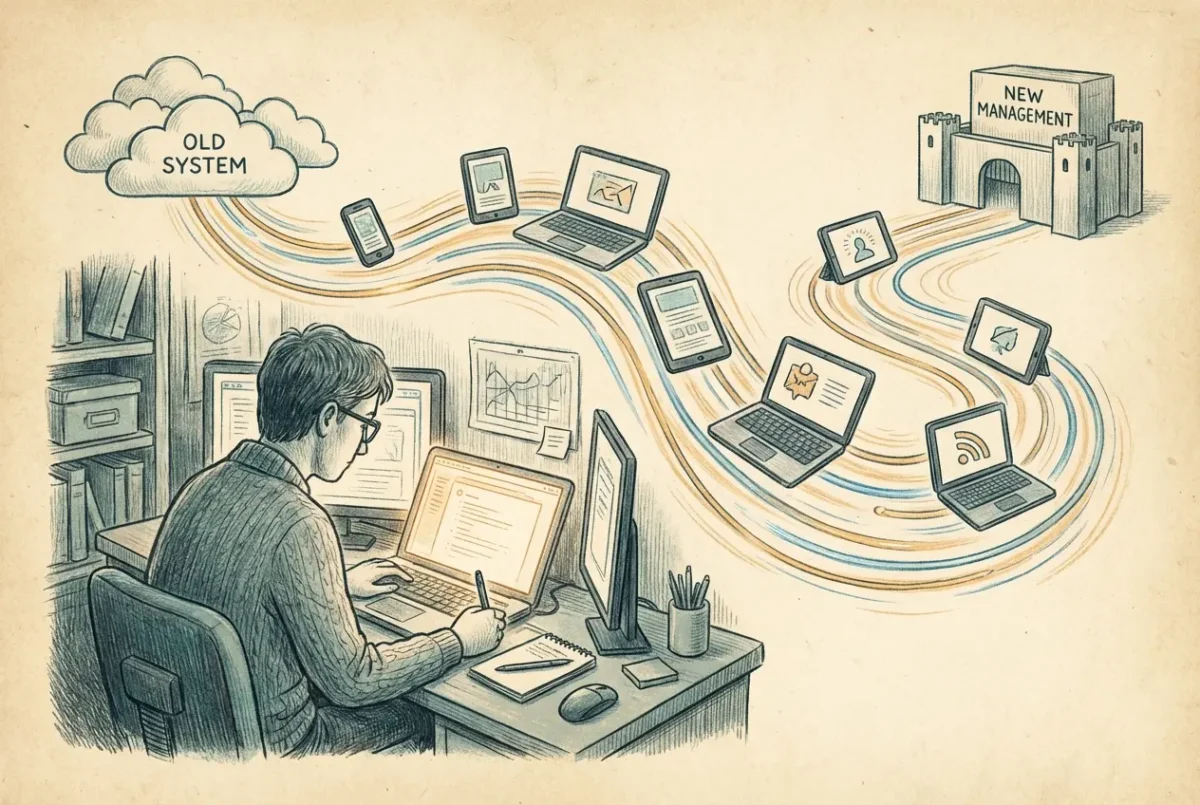

The most common reason organizations end up in an MDM migration isn’t dissatisfaction with their current platform – it’s the realization that they already own Intune. It’s included in their Microsoft 365 licensing, it’s managing their Windows fleet, and the question becomes obvious: why are we paying for a separate MDM just for iOS and Android?
Workspace ONE (formerly AirWatch, now Omnissa), Meraki Systems Manager, MobileIron (now Ivanti), and a handful of others built strong positions in enterprise mobile management over the last decade. As Intune has matured and its mobile management capabilities have expanded, the case for consolidating onto a single platform becomes easier to make – especially when that platform is already licensed and already integrated with your identity infrastructure.
The migration itself is never as simple as flipping a switch. This article covers what the process actually looks like, where the pain points are, and what’s recently changed that makes the Apple device migration significantly less disruptive than it used to be.
The General Migration Playbook
Regardless of which MDM you’re migrating from, the approach follows the same sequence. Inventory first – understand what your current MDM is actually doing before you start moving anything. Configuration profiles, compliance policies, application deployments, certificates, VPN configurations, Wi-Fi profiles. Not everything in your current MDM will have a direct Intune equivalent, and discovering gaps after migration has started is significantly more disruptive than discovering them during planning.
Build the Intune configuration before touching any devices. Enrollment restrictions, compliance policies, configuration profiles, application deployments – all of this should be validated in Intune against a pilot group before you migrate a single production device. The pilot group catches the gaps your inventory missed and validates that Intune behaves the way you expect before you’re committed at scale.
Migrate in phases. Start with a small group of volunteers or low-risk devices, validate the outcome, then expand. Trying to migrate everything simultaneously is how migrations go badly – problems surface at full scale with no ability to contain them. A phased approach gives you control over the blast radius when something doesn’t work as expected.
There is no tool that exports your Workspace ONE or Meraki configuration and imports it into Intune. Policies must be recreated. That’s the most significant operational burden of any MDM migration – plan for it rather than discovering it mid-project.
Windows Devices
Windows migration from another MDM to Intune is the most straightforward part of any MDM consolidation. Windows devices unenroll from the current MDM – usually through the Settings app or a script – and re-enroll in Intune through Entra ID join and automatic MDM enrollment. If your enrollment scope and MDM auto-enrollment are correctly configured in Entra ID, the re-enrollment happens automatically when users sign in with their work account on a domain-joined or Entra-joined device.
The main consideration for Windows migration is timing – Intune policies don’t apply until the device has enrolled and checked in. There’s a window between unenrollment from the old MDM and full Intune policy application where the device is less managed than usual. Keeping that window short and having Intune policies validated and ready before migration begins minimizes the exposure.
Workspace ONE Specifics
Workspace ONE is the most common MDM migration source right now. Organizations that deployed AirWatch years ago, rebranded through VMware and now Omnissa, are increasingly evaluating whether the cost and complexity of maintaining a separate platform justifies the delta over what Intune provides. For many, it doesn’t.
The Workspace ONE migration has no policy import path to Intune. Every configuration profile, compliance policy, application deployment, and certificate profile needs to be recreated in Intune manually. This is the most time-consuming part of the migration and the part most likely to be underestimated. A Workspace ONE environment that has been in production for five or more years typically has significant configuration sprawl – profiles that were created for a specific purpose and never cleaned up, policies that reference applications that no longer exist, compliance rules that predate several organizational policy changes. The migration is an opportunity to rationalize that sprawl rather than replicate it wholesale in Intune.
Workspace ONE’s Intelligent Hub – the enrollment agent that WS1 uses on devices – needs to be removed as part of the migration. On Windows, this is relatively clean. On iOS and Android it happens as part of the MDM unenrollment process. On Mac, removing the Hub and the WS1 MDM profile requires the device to be unenrolled from Workspace ONE before Intune enrollment can succeed – you can’t have two MDM profiles on a Mac simultaneously.
Meraki Systems Manager
Meraki Systems Manager migrations are typically less complex than Workspace ONE migrations – Meraki’s MDM capability is generally shallower, which means there’s less configuration to recreate in Intune. Organizations that use Meraki MDM alongside Meraki networking often have a relatively lightweight device management configuration compared to dedicated MDM deployments. The migration follows the same pattern: inventory what Meraki is doing, build the equivalent in Intune, pilot, then migrate.
One consideration specific to Meraki environments: Meraki MDM is often chosen because it’s bundled with Meraki networking licensing rather than because of its MDM capabilities. If the organization is also using Meraki for network management, the device management migration to Intune doesn’t affect the network management side – those remain separate. The migration scope is the device management piece only.
iOS and Android Migration
iOS and Android migration historically required unenrolling from the old MDM and re-enrolling in Intune – straightforward in concept, operationally disruptive because it required user action on every device. For iOS devices enrolled via Automated Device Enrollment through Apple Business, it was more complicated: ADE locks a device to a specific device management service, so moving to a new MDM required wiping and re-provisioning the device from scratch. That’s a significant operational burden at scale.
iOS 26, iPadOS 26, and macOS 26 change this significantly. Apple introduced native MDM migration through Apple Business – devices enrolled via ADE can now be migrated to a new device management service without a factory reset. The migration is initiated by reassigning the device in Apple Business to the new device management service and setting a deadline. Users receive notifications on the device and are prompted to complete re-enrollment in the new MDM before the deadline. If they don’t act before the deadline, the migration is enforced automatically. Data stays on the device. The old MDM’s managed apps and configurations are removed. The new MDM’s profiles and apps apply after re-enrollment.
The iOS 26 native MDM migration removes the single biggest barrier to Apple device MDM consolidation. For organizations with modern Apple fleets, this changes the migration calculus entirely – what previously required wiping thousands of devices can now be done as a managed, non-disruptive transition.
The requirements are worth understanding clearly. The native migration requires iOS 26, iPadOS 26, or macOS 26 or later. The device must be enrolled via ADE – personally enrolled devices don’t qualify. The device must be in Apple Business or Apple School Manager. Apple also states flatly that migrating to and from the built-in device management service isn’t supported, so a fleet sitting on Apple Business’s own management service is outside this path. Devices running older OS versions still require the traditional wipe-and-re-enroll path. For a mixed fleet with some devices on older OS versions, you’ll likely need both paths – native migration for qualifying devices and wipe-and-re-enroll for the rest.
Android migration doesn’t have an equivalent native migration feature – Android devices unenroll from the old MDM and re-enroll in Intune through the standard enrollment flow. For Work Profile devices on personal phones, the migration removes the work profile from the old MDM and creates a new one under Intune. For Fully Managed corporate devices, re-enrollment typically requires factory reset and re-provisioning through QR code or Zero Touch.
An Honest Note on Intune vs. Jamf for Mac
Organizations migrating from Jamf to Intune for Mac management should go in with realistic expectations. Intune’s macOS management capabilities have improved substantially and continue to improve with each release. For Microsoft-centric environments, the identity integration story – particularly Platform SSO – is now meaningfully better in Intune than it was two years ago.
Jamf is still deeper. Script deployment flexibility, zero-touch provisioning workflows, patch management granularity, and the breadth of the Mac admin community tooling built specifically for Jamf – these are real advantages that Intune hasn’t fully closed. Organizations with complex Mac management requirements, particularly those relying heavily on custom scripts, complex onboarding workflows, or granular patch management, should evaluate carefully whether Intune meets their specific requirements before committing to a Jamf migration.
For organizations whose Mac management requirements are moderate – deploy managed apps, enforce FileVault, configure Platform SSO, ensure compliance – Intune is sufficient and the consolidation benefit is real. The right answer depends on the complexity of the Mac management requirements, not on the general reputation of either platform.



