
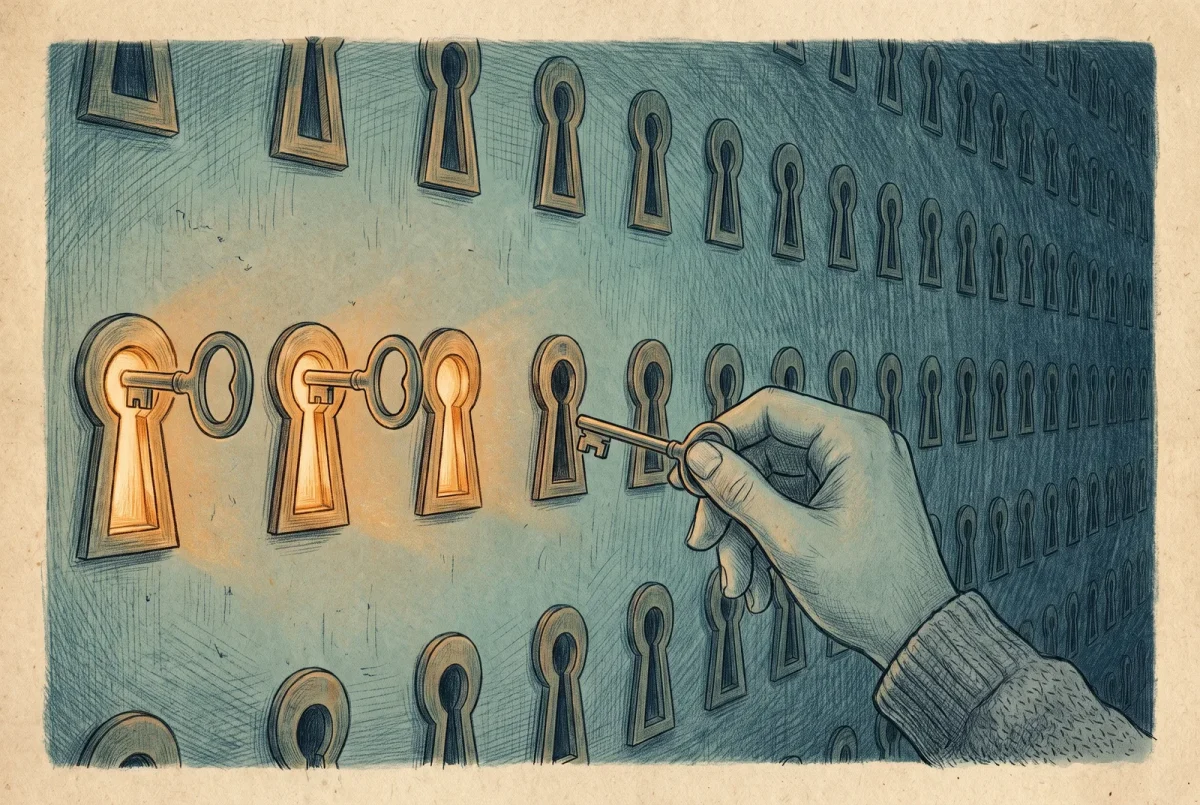
By the end of this you have moved the pilot cohort’s groups and then its users to cloud-managed and watched them behave, rehearsed a rollback on a real account, and expanded the same pattern cohort by cohort as the later stages clear the way; then, at the far end of the journey and against the Stage 5 census rather than against the pilot, you have cut directory synchronization for the whole tenant with the Connect server retired first, cleared the on-premises identifiers that linger, made the password-expiry decision on purpose, and confirmed the tenant stands with no synchronization engine behind it. The reversible work is fenced by a rehearsal you can roll back, and the one moment after which there is no going back is named where it happens, which is not the pilot. This assumes the tenant is already on password hash sync and the Connect server is on a current build.
Before Step 1: Hybrid Identity Administrator, the Microsoft Graph PowerShell module, and a maintenance window for the tenant-wide cut even though the work itself is quick, because the backend conversion runs afterward on its own clock. Keep the Stage 0 inventory open; the users you pick for the pilot should be ordinary desk users whose rows carried no on-premises dependency.
Step 1: Connect with the right scope
The whole operation is Graph, because there is no admin-center screen for per-user conversion. Connect once with the permissions the pilot and the cut both need.
Connect-MgGraph -Scopes "User-OnPremisesSyncBehavior.ReadWrite.All",
  "User.ReadWrite.All", "Organization.ReadWrite.All", "Directory.ReadWrite.All"
Step 2: Transfer the groups, then the pilot wave
Groups cross before their members. Microsoft recommends that order, and the reason is practical: memberships and application assignments hang off the groups, so testing a transferred user against a group still mastered on-premises tells you very little. The surface is the same one the users use, pointed at the group. Security groups cross cleanly; nested groups go one at a time from the bottom of the hierarchy up; distribution lists and mail-enabled security groups become Exchange-managed and read-only in Entra once transferred, so leave those until nothing on-premises still manages mail objects. Check the sync client floor before you start, because below it the transfer is not supported: Connect Sync 2.5.76.0, or Cloud Sync 1.1.1370.0.
$group = Get-MgGroup -Filter "displayName eq 'Pilot-CloudManaged'"
$uri = "https://graph.microsoft.com/v1.0/groups/$($group.Id)/onPremisesSyncBehavior"

Invoke-MgGraphRequest -Method GET -Uri $uri

Invoke-MgGraphRequest -Method PATCH -Uri $uri `
  -Body @{ isCloudManaged = $true }

Invoke-MgGraphRequest -Method GET -Uri $uri
Pick three users who came out of Stage 0 with no on-premises dependency of their own. Transfer authority for each to the cloud, one object at a time. This is the rehearsal, and it is reversible. The transfer is a write to the object’s own onPremisesSyncBehavior resource, not to the user object, so it goes through a direct Graph request rather than through a user cmdlet.
$pilot = "jdoe@catsnackjack.com","asmith@catsnackjack.com","rlee@catsnackjack.com"
foreach ($upn in $pilot) {
  $id = (Get-MgUser -UserId $upn).Id
  Invoke-MgGraphRequest -Method PATCH `
    -Uri "https://graph.microsoft.com/v1.0/users/$id/onPremisesSyncBehavior" `
    -Body @{ isCloudManaged = $true }
  Write-Host "Transferred $upn"
}
Each transferred user is now mastered in the cloud while the other hundred and thirty-seven keep syncing from Active Directory as before. Nothing about their sign-in changed. What changed is where their identity is edited.
Step 3: Verify the pilot, over a real interval
Leave the pilot users converted for a working week, not an afternoon. Confirm each object now reports itself cloud-managed, then confirm the human experience: the pilot users sign in, reach their mail, reach their files, and use whatever line-of-business tools their role needs. A conversion that is clean on paper and broken at the desk is a conversion you want to find now, on three people you warned, rather than on the whole company.
foreach ($upn in $pilot) {
  $id = (Get-MgUser -UserId $upn).Id
  $soa = Invoke-MgGraphRequest -Method GET `
    -Uri "https://graph.microsoft.com/v1.0/users/$id/onPremisesSyncBehavior?`$select=isCloudManaged"
  "{0}  cloud-managed={1}" -f $upn, $soa.isCloudManaged
}
Step 4: Roll back, if the rehearsal said to
This is the only step in the stage with a genuine undo, which is exactly why the pilot exists. If a pilot user broke, hand authority back. The object returns to cloud-managed false, and the sync engine reclaims it on its next cycle rather than instantly, so give it one.
One thing has to be true before you send that request, and it is easy to miss because Microsoft states it in a callout rather than as a step. A user you are handing back must have no cloud references left behind: take them out of any group whose authority you already transferred, and take those groups out of any access package they feed, before you reverse the user. Run in the other order and the rollback half completes, the sync client declines the object, and you spend an afternoon reading sync logs for a problem that was in the group membership all along. Note also that the takeover protection below is documented for user rollback only; the group procedure carries no equivalent, so do not improvise one when you hand a group back.
$id = (Get-MgUser -UserId "jdoe@catsnackjack.com").Id
Invoke-MgGraphRequest -Method PATCH `
  -Uri "https://graph.microsoft.com/v1.0/users/$id/onPremisesSyncBehavior" `
  -Body @{ isCloudManaged = $false }
The block on cloud-object takeover is on by default, and while it is on the sync engine will not reclaim the object, so a rollback that appears to stall is almost always this. Turn it off, let a sync cycle run, confirm the object is back under on-premises control, then turn it back on. Leaving it off is a standing exposure, not a tidy-up you can defer.
# $syncId is the tenant's on-premises directory synchronization configuration id
$syncId = (Invoke-MgGraphRequest -Method GET `
  -Uri "https://graph.microsoft.com/beta/directory/onPremisesSynchronization").value[0].id

Invoke-MgGraphRequest -Method PATCH `
  -Uri "https://graph.microsoft.com/beta/directory/onPremisesSynchronization/$syncId" `
  -Body @{ features = @{ blockCloudObjectTakeoverThroughHardMatchEnabled = $false } }

# after the reclaim is confirmed, put the protection back
Invoke-MgGraphRequest -Method PATCH `
  -Uri "https://graph.microsoft.com/beta/directory/onPremisesSynchronization/$syncId" `
  -Body @{ features = @{ blockCloudObjectTakeoverThroughHardMatchEnabled = $true } }
Do not proceed past the pilot until every pilot user is either verified good or rolled back and understood. The pilot gates the cohorts; it does not gate the cut. The tenant-wide disable in the final steps has its own gate, and it is the Stage 5 census, not this rehearsal.
Step 5: Expand cohort by cohort, as the later stages clear the way
The pilot proved the mechanism on three people; everyone else crosses the same way, a cohort at a time, and each cohort waits for the stage that clears its dependencies. Take a department once its file shares have moved, its application has stopped asking the domain about it, and its wireless no longer authenticates against NPS, which in practice means after Stages 2 through 4 have done their work for those people. The commands do not change: the groups those users hang off cross first, on the pattern above, then the users on the transfer pattern from Step 2, with the verification interval from Step 3 applied to each wave exactly as it was to the pilot. Rollback stays available for every cohort, because per-user transfer remains reversible right up until the tenant-wide cut. Work down the cohort plan written in Stage 1 until the only accounts still synchronizing belong to people no stage has reached yet, and let the sync engine keep running for them in the meantime.
Step 6: Remove the seamless single sign-on artifact
Steps 6 through 11 all run at the far end of the journey, once the cohorts are through; the gate for the whole block is named at Step 8, and it is the Stage 5 census rather than the pilot. The block opens here because this is the piece most easily stranded. Seamless single sign-on left a computer account in Active Directory, and it should come out while a domain controller is still standing, because the removal reaches into AD. This does not affect modern sign-in, which rides a different mechanism entirely, and the devices rebuilt in Stage 2 stopped using it the day they left the domain; it only retires a legacy convenience whose remaining users are the accounts you are about to convert anyway.
One provenance note, and it is the reason this step sits where it does rather than later. The module that does the work, AzureADSSO.psd1, ships inside the Entra Connect installation folder, so it has to run while that folder still exists, which puts it in front of the uninstall in the next step. If you have already uninstalled, the recovery is Microsoft’s own: download the Entra Connect installer onto any domain-joined machine and let the MSI unpack without running the configuration wizard, which puts the module back without standing a server up. The command also needs credentials: domain administrator for the forest, supplied in SAM account name format such as catsnackjack\admin, from an account that is not a member of Protected Users. Microsoft documents the forest removal and the tenant-level disable separately and does not order them; taking the account out first and turning the feature off afterward is what leaves nothing half-removed.
cd "$env:ProgramFiles\Microsoft Azure Active Directory Connect"
Import-Module .\AzureADSSO.psd1

New-AzureADSSOAuthenticationContext           # sign in as Hybrid Identity Administrator
Get-AzureADSSOStatus | ConvertFrom-Json       # confirm which forests are enabled

$creds = Get-Credential                       # domain admin, SAM format: catsnackjack\admin
Disable-AzureADSSOForest -OnPremCredentials $creds   # removes the AZUREADSSOACC computer account

# if AD is already unreachable, name the forest instead of passing credentials
# Disable-AzureADSSOForest -DomainFqdn catsnackjack.com

Enable-AzureADSSO -Enable $false              # last, so the tenant stops reporting it enabled
Step 7: Retire the Connect server
Order matters here and the wrong order leaves the tenant in a confusing half-state. Uninstall the sync client from the Connect server before you disable synchronization at the tenant, not after. On the Connect server, uninstall through Programs and Features, or let the wizard convert the tenant as it exits if it offers to; either way the engine stops before you throw the tenant switch. Export the server’s configuration first if you want a record of the sync rules, then shut the machine down and leave it off. Everything from here is meant to work without it, and a Connect server sitting powered on is a Connect server somebody can start again by accident.
Step 8: Cut the sync for the tenant. This is the point of no return.
Everything to here was reversible. This is not. Disabling directory synchronization starts a backend transfer of every remaining synced object to cloud-managed, it runs for up to seventy-two hours, it cannot be cancelled, and re-enabling is blocked until it finishes. After a seventy-two hour hold synchronization can be turned back on, which starts a full synchronization; it is not an undo in any case, because nothing deleted or cleaned up after the cut comes back. Say it out loud to whoever needs to hear it, then run it.
This step and everything after it run at the end of the journey, not the end of the pilot. The gate is the Stage 5 census reading quiet: every remaining synced user either converted or accounted for, no password-based dependency left standing for anyone still synced, devices moved, services moved. If you are here in the same week as the pilot, stop.
$org = (Get-MgOrganization).Id
Update-MgOrganization -OrganizationId $org `
  -BodyParameter @{ onPremisesSyncEnabled = $false }
On a tenant this size the conversion is usually quick, minutes to a few hours rather than the full envelope, but do not schedule anything against its completion; wait for the portal to show synchronization disabled and the objects cloud-managed before you move on. The pilot users, already converted, are unaffected; everyone else joins them.
Step 9: Clear what lingers
Seven on-premises linkage properties survive the cut and can confuse a later device operation if left: the SAM account name, the user principal name, the distinguished name, the domain name, the security identifier, the object identifier and the immutable ID, which appear in Graph as onPremisesSamAccountName, onPremisesUserPrincipalName, onPremisesDistinguishedName, onPremisesDomainName, onPremisesSecurityIdentifier, onPremisesObjectIdentifier and onPremisesImmutableId. The supported cleanup tool is ADSyncTools, version 2.5.0 or later, and it works against Graph rather than against the sync engine, so it runs from an ordinary admin workstation with PowerShell 7 after the Connect server is gone. Back up the current values before you clear them, so the cleanup is itself reversible in the narrow sense that you can see what was there. The clear runs per object, so the whole-tenant form pipes the get into the clear; a bare -All with no object named will simply sit there asking you which one.
Install-Module ADSyncTools -Scope CurrentUser   # 2.5.0 or later
Import-Module ADSyncTools

Get-ADSyncToolsOnPremisesAttribute | Export-Csv .\onprem-attrs-before.csv -NoTypeInformation
Get-ADSyncToolsOnPremisesAttribute | Select-Object id |
  Clear-ADSyncToolsOnPremisesAttribute -All -Verbose
Step 10: Deal with the never-expiring passwords
Synced users carry a flag that disables password expiry, set because expiry used to be an on-premises concern, and the cut does not clear it. Decide deliberately: if your cloud policy expires passwords, clear the flag; if you are moving to a passwordless or long-lived-passphrase posture, leave it on as a conscious choice and record why. Either way, make it a decision rather than an inheritance.
# see who still carries the never-expire flag
Get-MgUser -All -Property UserPrincipalName,PasswordPolicies |
  Where-Object { $_.PasswordPolicies -match 'DisablePasswordExpiration' } |
  Select-Object UserPrincipalName
Step 11: Prove the tenant no longer needs the sync engine
The end-to-end test for this stage is the Connect server being off while everything works. It has been off since Step 7, so this confirms rather than acts: have a real user sign in, reach mail and files, and open the line-of-business application, all while the Connect server stays dark. Check the tenant reports synchronization disabled and no sync errors are accruing. Be precise about what that proves, because the boundary matters later: it proves the tenant stands without the synchronization engine, and nothing more. The domain controllers are still running underneath all of it, so this test cannot tell you whether anything still reaches for them. That proof is the scream test in Stage 6, and it is deliberately not this article’s job. If anything depends on the sync you just cut, this is where it surfaces, and it surfaces while the Connect server is merely off rather than gone, which is the recoverable version of the problem.
| Check | Expected |
|---|---|
| Tenant sync state | Directory synchronization disabled, no accruing sync errors |
| A real user, Connect server off | Signs in, reaches mail and files, opens the LOB app |
| Pilot users | Indistinguishable from the rest of the tenant |
| Lingering identifiers | Cleared, with the before-state exported |
| Password expiry | Set deliberately, decision recorded |
| Seamless SSO account | Removed while a DC still exists |
The two gates, and what carries into Stage 2
This sheet spans the journey, so it closes twice. Stage 1 closes at the end of Step 4, when the groups have crossed, the pilot wave is cloud-managed and verified, a rollback has been rehearsed on a real user and watched to complete, and the cohort plan for the rest is written against Stage 0’s inventory. That is the gate into Stage 2, and it is where most readers will sit for months. Steps 5 through 11 close the journey instead, and the table above verifies those, not Stage 1; none of its rows can be true until the Stage 5 census reads quiet. CatSnackJack held the Connect server dark for a week after its cut before decommissioning it, which is cheap insurance against a dependency that only fires monthly. What carries into Stage 2 is a cloud-native pilot cohort and a written plan for the rest, which means the next problem is the devices those users sign in on, because a hybrid-joined laptop is still reaching for a domain that is about to stop answering. That is Stage 2, and it is the stage with no in-place shortcut, so it is worth arriving at it rested.
AD to Azure
‹ Previous: [AD 3] Identity: Cutting the Sync
Next: [AD 4] Devices: The Rebuild You Were Hoping to Avoid ›



