
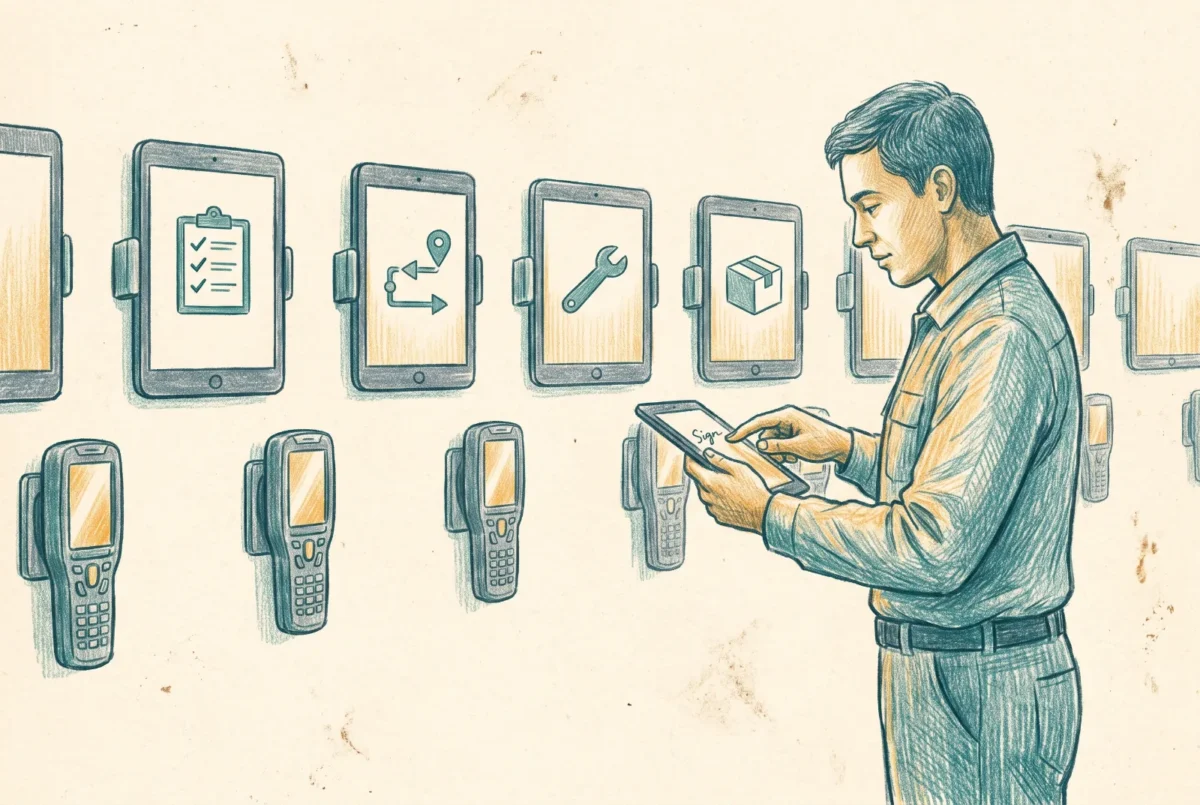

Dedicated devices are the corner of Android Enterprise where there is no user, only a job: the warehouse scanner, the lobby sign-in tablet, the shared handset that ten frontline workers pass around across three shifts. The ownership models sit in [9.3] Android Enterprise Models. This is how you actually stand a dedicated fleet up, which of the three lockdown modes fits which job, and the two places the design quietly diverges from everything else in this series.
What dedicated means, and what it needs
A dedicated device is corporate owned and, in Google’s terms, single-use: locked to a task rather than issued to a person. It is typically userless, which is the fact that ends up shaping every downstream decision. Standard dedicated enrollment runs on Google Mobile Services, so the device needs GMS present, which is the ordinary case for commercial Android hardware. When the hardware has no Google services at all, a rugged headset or a Teams device, that is a different management stack entirely, and I keep the two straight from the start because conflating them is the most common way these projects go wrong.
The enrollment profile and the token
You create a corporate-owned dedicated devices enrollment profile, and it produces a token, a QR code, and a JSON payload you can hand to a provisioning pipeline. The profile carries one decision that matters later: whether the token is a plain dedicated token or one configured for Microsoft Entra shared device mode, which pushes the Authenticator broker so the device can support a real sign-in and sign-out identity. The enrollment-profile token carries an expiration date you set, and you can push it years out, so it is worth being precise here rather than assuming it never lapses, because a lapsed token means a re-imaged device cannot re-enroll and nobody notices until one does.
How the token reaches the device is a logistics choice, not an architectural one. QR code is the general-purpose method and the one I reach for by default. Google zero-touch and Samsung Knox Mobile Enrollment bind the device to your tenant at the reseller so it provisions straight out of the box, which is what you want at scale. NFC and manual token entry are the fallbacks for a device already in hand. Pick by how the hardware arrives, not by preference.
Three modes, three jobs
| Mode | What it is | The right job |
|---|---|---|
| Single-app kiosk | One app, fully locked. The user cannot exit it or reach anything else. No launcher. | Digital signage, a single-purpose scanner, a check-in kiosk that only ever runs one thing. |
| Multi-app kiosk | A curated set of apps behind the Managed Home Screen launcher, with the rest of the device locked away. | A frontline device that needs three or four tools and nothing else. |
| Shared device mode | Multi-app plus a global sign-in and sign-out identity through Microsoft Entra, so one tap signs a worker into every supported app and one tap signs them out and clears their data. | Handsets that rotate across shifts, where each worker needs their own session on shared hardware. |
The line that matters is between dedicated-without-sign-in and shared device mode. A plain dedicated device has no user identity; a shared-device-mode device gives the rotating worker a real one for the length of their shift. That single difference decides what compliance and Conditional Access can even see, which is the last section.
Managed Home Screen is the multi-app build
Single-app kiosk is configured on the device restriction profile and needs nothing else. The moment you want more than one app, you are deploying the Managed Home Screen, and it is configured through an app configuration policy rather than the enrollment profile. That app config is where the real experience gets built, and the raw JSON exposes settings the visual designer hides, so I reach for JSON when a control I need is greyed out.
The settings worth deciding before you deploy are the allow-listed apps and their layout, a session PIN with its complexity and a lock after inactivity, auto sign-out with a countdown for shared-mode devices so a walked-away session does not stay open, and a screensaver for signage. There is also an exit-kiosk password for a technician to break out and troubleshoot, and that one lives on a device configuration profile, not the app config, which trips people up every time. Set the session PIN and the auto sign-out deliberately, because on a device a dozen people touch, those two settings are the difference between a shared tool and a data leak.
AOSP: the path for devices without Google
When the hardware has no Google Mobile Services, dedicated enrollment does not apply and you use the separate Android Open Source Project management stack instead. This is the path for Microsoft Teams Android devices, which have moved onto it and off the retired device administrator model, and for the rugged and mixed-reality hardware that ships without Google, from RealWear headsets to Meta Quest. AOSP comes in a userless flavor and a single-user flavor, enrolls by QR code, and configures the userless devices with the Authenticator and Company Portal in Entra shared device mode.
There is one limitation on AOSP that changes how you design around it, and I flag it early rather than let it surprise an audit: device compliance reporting is not available for AOSP devices. You can assign a compliance policy, but you do not get the compliance signal back, which means any Conditional Access rule that depends on device compliance has nothing to evaluate on those devices. Design the access model for that reality instead of assuming the signal is there.
Compliance and access on a device with no user
A userless device has no signed-in identity, so classic user-based Conditional Access has nothing to key on. This is an architectural consequence rather than a single documented rule, and it is why the Teams-room pattern is explicit that you never require interactive multi-factor on a device with no second factor to approve it: you would simply lock the device out of its own sign-in. Compliance is assigned to the device and, where a resource account exists, to that account, and a device that misses its requirements is marked noncompliant even though no user is there to be prompted.
Shared device mode is the exception that restores the signal. Because the frontline worker actually signs in, their session carries a real identity, and user-based Conditional Access applies to it for the length of the shift: require a compliant, enrolled device and the worker can only sign into a supported app when the device qualifies. That is the reason shared device mode, rather than a plain dedicated lockdown, is usually the right answer for rotating frontline workers. Standard corporate enrollment and its trade-offs are covered in [9.3.1] Android Enrollment in Practice, and the personal-device counterpart, where the user does own the phone, is in [9.3.4] Building Android BYOD Onboarding.
Intune Deployment Guide · Phase 9: Mobile and BYOD
‹ Previous: [9.3.2] Work Profile vs Fully Managed: Making the Right Call
Next: [9.3.4] Building Android BYOD Onboarding: Web Enrollment and the AMAPI Migration ›



