
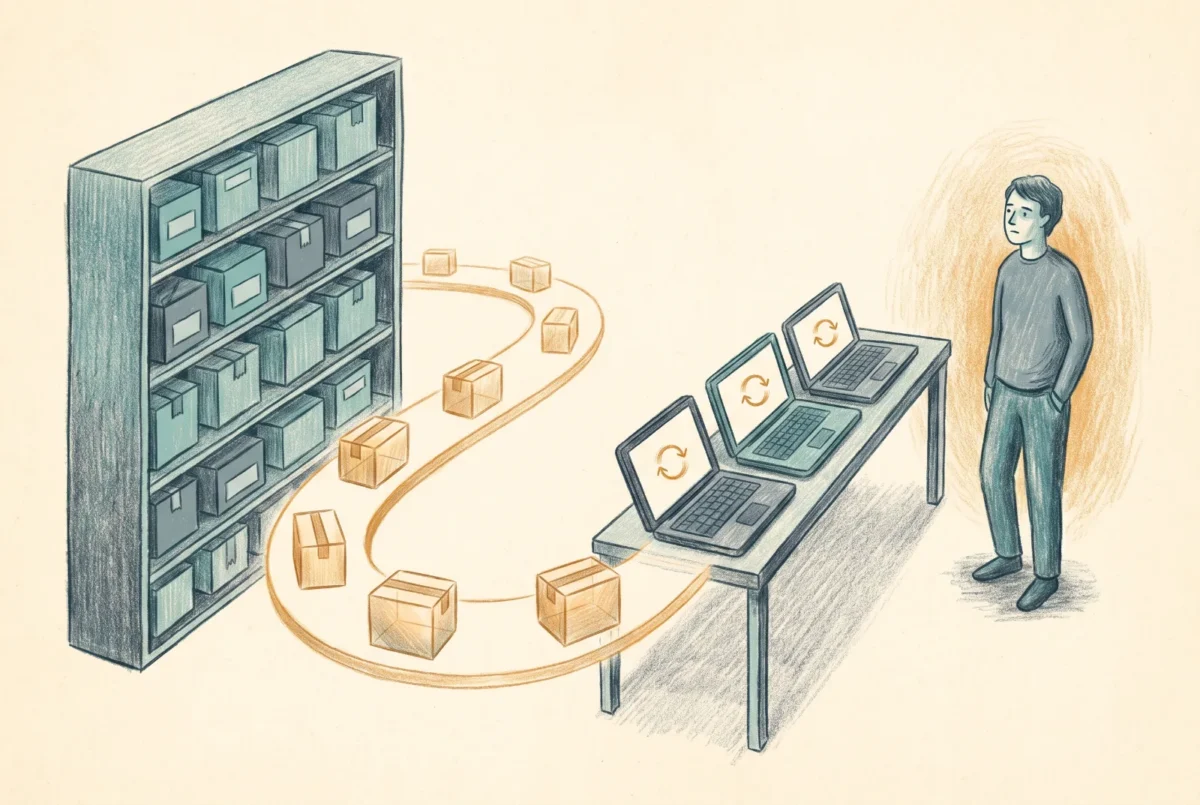

Auto-update for Enterprise App Catalog apps is now generally available, and because Microsoft folded Enterprise App Management into E5 and E7 in the same release, far more tenants own this switch than ever went looking for it. Flipping it is easy. The decision behind it is not.
Two things landed together in the mid-2026 service release, and they are worth reading as one event. Auto-update for Enterprise App Catalog apps reached general availability, and Enterprise App Management stopped being a niche paid capability and became part of Microsoft 365 E5 and E7. If you hold E5, you now own this whether or not you asked for it. That combination is why this is worth thinking about now rather than when it surprises you: a control surface that used to belong to the shops who deliberately bought the Intune Suite is suddenly provisioned across a lot more tenants, one toggle away from changing how third-party applications are maintained on every device you manage.
The Enterprise App Catalog itself I have written about elsewhere, in the context of where it sits against the free winget floor and against a deeper tool like Patch My PC. The short version: it is Microsoft’s own library of prepackaged Win32 applications, now well over a thousand titles, hosted and maintained by Microsoft, installed by the Intune Management Extension rather than winget. What auto-update changes is not the packaging. It changes who decides when a new version reaches your fleet, and that is a different kind of decision entirely.
What auto-update actually is
Auto-update converts Enterprise App Management from a packaging accelerator into a managed patch service. Under the original model, guided supersedence, you stay in the loop: Intune surfaces a newer catalog version, you create the superseding app, you set the assignment, and you decide when and to whom it goes. Phasing is something you build by hand, by staggering assignments across groups, because there is no ring engine underneath it. Auto-update removes that loop. Once you set an Enterprise App Catalog app to update automatically, Intune deploys each new catalog version to every targeted device on its own, with no app to create and no supersedence relationship to maintain.
That is genuinely less work, and it is genuinely less control, and those are not two facts. They are the same fact seen from two directions. The labor you stop spending on superseding a title is exactly the oversight you stop applying to it. Whether that is a good trade depends entirely on the title, which is the whole point of this article.
Auto-update does not remove the risk of a bad version. It removes your opportunity to catch one before it ships.
What you are giving up, stated plainly
The limitations of auto-update are not rough edges that will be sanded down in a later release. They are the design of the thing, and they all describe control you no longer hold. The first and most consequential is that there are no rings. A new version goes to every targeted device at the same time. You cannot fail small. There is no pilot ring absorbing a bad build before it reaches the people who file tickets, because the mechanism was not built to stage anything. This also means auto-update is a fleet-push tool by design and not a self-service one: it works only on Required assignments, and anything you offer as Available through the Company Portal keeps the old workflow.
When a version does go bad, Intune will not walk it back for you. There is no built-in rollback and no automatic uninstall remediation. You find out from your users or your monitoring, and then you remediate by hand, with an Uninstall intent or a remediation script, after the damage is already visible. The malicious case is worse in a specific way worth understanding. If Microsoft pulls a compromised version, it removes that version from the catalog and posts a notice, but it does not reach into your fleet and revoke what already installed. Identifying which devices took the bad version and cleaning them up is your responsibility, not Microsoft’s. And there is a window in this: catalog data is cached for up to an hour, so a revoked or newly published version can take as long as sixty minutes to reflect. For a routine update that hour is nothing. For a compromised one it is exposure you did not choose.
The remaining constraints are smaller but sharp, and they are the kind you discover at the worst time if you have not read them first. There is no running-application detection, which is a property of Enterprise App Management generally rather than auto-update alone, but auto-update is what makes an application close mid-task on Microsoft’s schedule instead of yours. You cannot use an auto-update catalog app as a blocking app in the Enrollment Status Page or in Autopilot device preparation. Reporting keeps only the latest state per device and not the sequence, so the question of what a machine had last week has no answer. And you cannot double-manage a title: the same application cannot also be deployed as a separate Win32 or line-of-business app, so committing a title to auto-update means retiring whatever else was installing it.
Where the switch belongs
None of this makes auto-update a bad feature. It makes it a feature with a correct scope, and the scope is narrower than the toggle’s convenience will tempt you toward. This is an application-by-application decision, never a blanket one. Cede control where the cost of a bad version is low and the value of never touching the thing again is high: the utilities, the runtimes, the command-line tools, the long tail nobody ever schedules a maintenance window for. For 7-Zip, Notepad++, PowerToys, the JDKs and their kin, a bad build is an annoyance you remediate reactively, and the labor you stop spending on packaging and superseding them is real and recurring. That is the trade working in your favor.
Keep guided supersedence for everything else. Anything with a change record, a maintenance window, a compliance dependency, or a user population that will stop working the instant the application closes underneath them belongs on the path where you decide the timing. The line is not about how important the application is in the abstract. It is about whether you can afford to meet a bad version reactively rather than prevent it, and for a meaningful part of any estate the honest answer is that you can.
What you cannot skip, if you use this at all, is visibility. Because there are no rings and no version history, the audit question has to be answerable on demand: which titles did I put on automatic, and what are they running right now. That list is the thing you are accountable for, and it is worth keeping close rather than trusting to memory. The catalog apps expose themselves cleanly through Graph, so enumerating them is a few lines:
Connect-MgGraph -Scopes "DeviceManagementApps.Read.All"

# Every Enterprise App Catalog app in the tenant
Get-MgDeviceAppManagementMobileApp -All |
    Where-Object { $_.AdditionalProperties['@odata.type'] -eq '#microsoft.graph.win32CatalogApp' } |
    Select-Object DisplayName, Id
Run that on a schedule, keep the output where your change process can see it, and you have replaced the version history the platform does not give you with one you maintain yourself.
The decision, not the toggle
Auto-update is not a convenience you turn on because it is there. It is a decision to change who owns the timing of a change, and to accept that owning the response to a bad one becomes reactive rather than preventive. Made deliberately, on the long tail, where a bad version is cheap and the saved labor compounds, it is a good trade and it removes work you should not have been doing by hand anyway. Made by default, across everything, because E5 now includes it and the switch is right there, it is how you learn at two in the afternoon on a Tuesday that a version everyone received at once has closed the application half your users were working in. Cede the control on purpose, where it costs you least, and keep the list of what you ceded.
Intune Deployment Guide · Phase 7: Applications
‹ Previous: [7.1.3] Winget in Intune: The Poor Man’s App Delivery
Next: [7.2] Packaging Models: Win32, LOB, MSIX, and When to Use Each ›



