
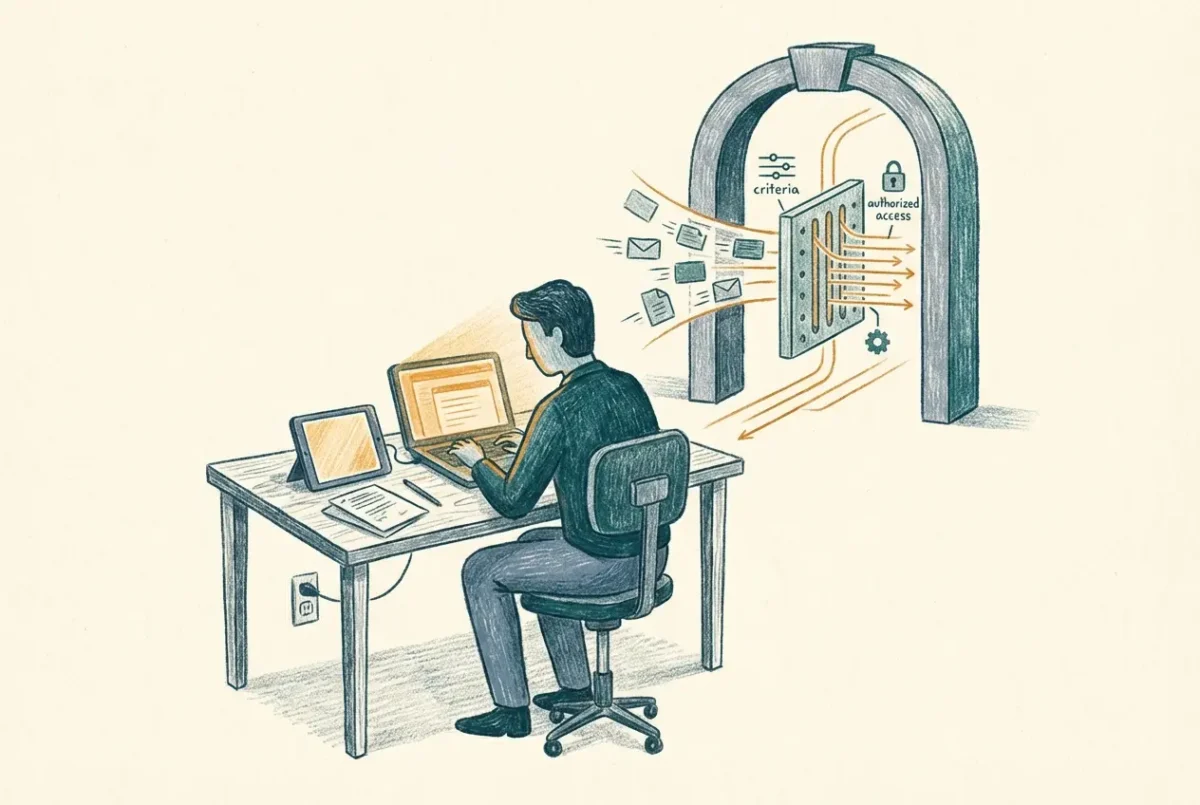

Enrollment restrictions are the first line of control over what gets into your Intune environment. Most deployments leave them at default. That’s a mistake.
The default enrollment restriction allows any device on any platform to enroll. That’s fine for a lab. In a production environment you want to be deliberate about what you’re accepting – which platforms, which ownership types, and whether personally owned devices should be able to enroll at all without going through a different path.
What enrollment restrictions actually control
There are two types of enrollment restrictions in Intune: device platform restrictions and device limit restrictions. Platform restrictions control which operating systems and ownership types can enroll. Device limit restrictions control how many devices a single user can enroll. They’re configured separately and applied separately.
Platform restrictions let you block enrollment by OS type entirely, set minimum and maximum OS version requirements, and distinguish between corporate-owned and personally owned devices. The version floor comes with fine print: it does not exist for macOS at all, and for iOS and Android it applies only to Company Portal enrollments – devices arriving through ADE or other zero-touch flows never see it. Windows is the platform where it fully bites. Device limit restrictions cap the number of devices per user – the default is five, which is reasonable for most environments but worth reviewing if you have shared device scenarios or power users with multiple machines.
Both restriction types support priority ordering and group-based assignment. The default restriction applies to everyone with no override. Additional restrictions sit above the default in priority and apply to specific groups. When a user enrolls a device, Intune evaluates restrictions from highest priority to lowest and applies the first one that matches.
What to configure
Start with the default restriction and tighten it to match your actual deployment scope. If you’re deploying Windows and macOS only, block iOS, Android, and Windows Phone at the default level. If you’re deploying Windows only, block everything else. The default restriction is your floor – it applies to anyone who doesn’t match a higher-priority restriction, so make it as restrictive as your broadest legitimate use case requires.
For personally owned devices, the decision depends on your BYOD posture. If you’re running MAM-only for personal devices – app protection policies without full device enrollment – block personally owned enrollment at the default level. Users on personal devices will be directed through the MAM path rather than full MDM enrollment. If you’re allowing personal device enrollment for specific groups, create a higher-priority restriction that permits it and assign it to those groups only.
The default restriction is your catch-all. Treat it as the most restrictive policy in your stack, not the most permissive.
OS version minimums are worth setting, particularly for Windows. Requiring Windows 11 at enrollment prevents older, potentially unpatched machines from joining the management boundary; Windows 10 stopped being a sensible floor when it reached end of support in October 2025, and the only reason to set one below Windows 11 now is an ESU-covered population you are carrying deliberately. The minimum version should match your lowest supported build – whatever you’d accept in production. Devices below that threshold can’t enroll until they’re updated, which forces the issue rather than letting old builds drift in.
Corporate vs personally owned
Intune determines device ownership at enrollment based on how the device arrives. Devices enrolled through Autopilot, Apple Business, or Android Enterprise zero-touch are automatically marked corporate-owned. Devices enrolled manually by users – through the Company Portal or Settings – are marked personally owned by default unless you’ve pre-uploaded their serial numbers or identifiers to mark them corporate in advance. Corporate device identifiers are the fourth marking path alongside those three, and on Windows they carry a nuance that surprises people: a manufacturer, model and serial identifier only applies at enrollment time, so the device passes the corporate check at the door and then shows as personal in the admin center afterwards. A Windows device that joins Entra during setup is marked corporate on its own without any of this.
This distinction matters for restrictions because you can allow corporate enrollment while blocking personal enrollment at the same priority level. It also affects what Intune can manage on the device – corporate-owned devices have a broader management surface than personally owned ones, particularly on iOS and Android where privacy protections limit what MDM can see and control on personal devices.
For Windows, the corporate versus personal distinction is less consequential from a management capability standpoint – Intune manages Windows devices consistently regardless of ownership type. The distinction still matters for inventory and reporting, and for applying different compliance requirements to personal versus corporate machines if your policy requires it.
Device limits
The default device limit of five per user is sensible for most environments. The scenarios where you need to adjust it are specific: shared device deployments where a single service account enrolls many devices, or executive users who genuinely have more than five corporate devices. In both cases, create a higher-priority restriction for the relevant group rather than raising the default for everyone.
One thing worth knowing: device limit restrictions count all enrolled devices against the user who enrolled them, not the user who uses them. In a shared device deployment where a single account is used to enroll a fleet of kiosk devices, that account will hit its limit quickly. Plan for this before it becomes a production incident.
Testing before you lock down
Before tightening enrollment restrictions in a live environment, test the behavior with a pilot group. Restrictions apply at enrollment time – they don’t retroactively unenroll devices that are already managed. But any new enrollment attempt that doesn’t meet the restriction will fail, and the error message users receive isn’t always informative enough to tell them why.
Make sure your helpdesk knows what restrictions are in place and what the valid enrollment paths are before you apply them broadly. Enrollment failures are one of the most common sources of helpdesk tickets in a new Intune deployment, and most of them are caused by restrictions that weren’t communicated to the people doing the enrolling.
Intune Deployment Guide · Phase 3: Device Entry
‹ Previous: [3.1] Automatic Enrollment: Letting Devices In on Purpose
Next: [3.2] Hybrid Devices: What Works, What Doesn’t, and Why It’s a Stopgap ›



